Figuring out your laptop’s model can sometimes feel like a puzzle, especially if you’re new to computers. Many people wonder how to check laptop model when they need to buy a new accessory, get technical help, or update software. It might seem tricky at first, but it’s actually quite simple.
We’ll walk through easy ways to find this information. Get ready to learn exactly what you need without any fuss.
Key Takeaways
- You can find your laptop model in Windows settings.
- System Information offers a quick way to see your model.
- A sticker on your laptop often shows the model name.
- Using the Command Prompt is another option for tech-savvy users.
- Checking the original packaging or receipt can reveal your model.
Find Your Laptop Model In Windows Settings
Knowing your laptop’s model number is super helpful. It’s like knowing your car’s make and model. This information helps you find compatible parts, drivers, and support.
For example, if you need a new battery, knowing the exact model ensures you buy the right one. It also helps when you contact customer support. They will likely ask for your model number to help you faster.
This section shows you the simplest way to find it using the Windows operating system.
Using System Information
Windows has a built-in tool called System Information. It provides a lot of details about your computer. You can find everything from your processor type to your installed memory.
Most importantly, it clearly lists your system model. This is a very reliable source for your laptop’s exact model name and number.
To open System Information, you can use the search bar on your taskbar. Just type “System Information” and press Enter. Another quick way is to press the Windows key and the R key at the same time.
This opens the Run dialog box. Then, type msinfo32 and press Enter.
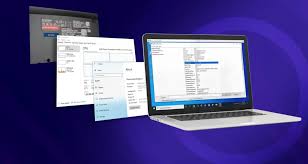
Once System Information opens, you will see a window with many categories on the left. Look for “System Summary” in the list. Click on it.
On the right side, you will see a lot of information about your computer. Find the line that says “System Model.” The name next to it is your laptop’s model. It’s usually a combination of letters and numbers.
Using Settings App (Windows 10 and 11)
Modern versions of Windows, like Windows 10 and Windows 11, make it even easier. You can find your laptop model directly within the Settings app. This method is very straightforward and doesn’t require any special commands.
To access this, click the Start button. Then, click on the gear icon to open Settings. Alternatively, you can press the Windows key and the I key together.
In the Settings window, click on “System.”
Scroll down the System page and click on “About” at the bottom of the list. Here, you will see details about your device. Look for “Device specifications.” Under this section, you should see “System model.” This is your laptop’s model.
For instance, your system model might look like “Dell XPS 13 9310” or “HP Spectre x360 14-ea0000.” This number is key for many future tasks.
Check Your Laptop’s Physical Label
Sometimes, the easiest way to find your laptop model is to simply look at the laptop itself. Manufacturers often put a sticker or label on the device that clearly states the model name. This label is usually placed in a spot where it is visible but not easily rubbed off.
Underneath the Laptop
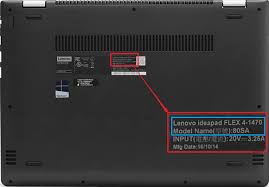
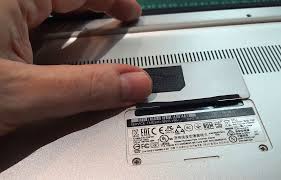
The most common place to find this label is on the bottom of your laptop. Turn your laptop over. You should see a sticker with various details.
This sticker often includes the manufacturer’s name (like Dell, HP, Lenovo, or Apple), the model number, serial number, and regulatory information.
The model name is usually printed in large, easy-to-read letters. It might be labeled as “Model,” “Product Name,” or simply listed. For example, you might see “Inspiron 15 5000” or “ThinkPad T490.” This is a direct confirmation from the manufacturer.
Near the Keyboard or Screen
In some cases, the model information might be located elsewhere. Some laptops have a small label near the keyboard area, often above the keys or just below them. Others might place it on the screen bezel itself, though this is less common and can sometimes be small.
It’s important to note that these labels can fade or get damaged over time. If the sticker is worn out or missing, don’t worry. The other methods described in this guide will still help you find the information you need.
Using the Command Prompt
For those who are comfortable with command-line tools, the Command Prompt offers another effective way to discover your laptop’s model. This method is quick and can be useful if you prefer not to click through several menus in Windows settings.
Steps to Use Command Prompt
First, you need to open the Command Prompt. You can do this by searching for “cmd” in the Windows search bar. Right-click on “Command Prompt” and select “Run as administrator.” This gives it the necessary permissions.
Once the Command Prompt window is open, type the following command and press Enter:
wmic computersystem get model
After you press Enter, the Command Prompt will display your laptop’s model name directly below the command. This is a very efficient method, especially for users who frequently use command-line tools.
For example, if you have a Lenovo ThinkPad, the output might simply read “ThinkPad X1 Carbon.” It’s a direct and no-frills way to get the exact model identifier. This method is also useful for scripting or automating tasks where you need to gather system information without manual interaction.
Check Original Packaging or Purchase Records
If you still have the original box your laptop came in, or if you have digital or physical copies of your purchase receipt, this information is readily available there. Manufacturers always include the specific model details on these documents.
Original Box
When you buy a new laptop, the box it comes in is like a detailed report card for the device. Look for a label on the side or back of the box. This label will typically include the manufacturer’s name, the full model name and number, the color, and sometimes even the specifications like RAM and storage.
For instance, the box might clearly state “Apple MacBook Pro (13-inch M2, 2022)” or “ASUS ROG Strix G15.” This is a very trustworthy source as it’s directly from the manufacturer’s official product packaging.
Receipt or Online Order History
If you’ve purchased your laptop online or kept your store receipt, you can find the model information there. Online retailers usually list the exact product model in your order history. Your physical receipt should also have the product name and model number printed on it.
Checking your email for an order confirmation is also a good idea. It will list the full name of the laptop you purchased, including the model. This is particularly useful if you’ve had your laptop for a while and the physical labels are no longer legible.
Why Knowing Your Laptop Model Is Important
Understanding your laptop’s model is not just a minor detail; it’s essential for several practical reasons. Whether you’re a student, a professional, or just a casual user, this piece of information can save you time, money, and frustration. It empowers you to make informed decisions about your device and its upkeep.
Software and Driver Updates
One of the main reasons to know your laptop model is for software and driver updates. Drivers are small programs that allow your operating system to communicate with your hardware. When you need to update drivers for your graphics card, Wi-Fi adapter, or sound card, you need to know your specific model to download the correct ones from the manufacturer’s website.
Using generic drivers or drivers for the wrong model can lead to performance issues, instability, or even hardware malfunctions. Manufacturers release updated drivers to fix bugs, improve performance, and add new features. Having the correct model information ensures you get these benefits.
For example, if you have a gaming laptop like an Alienware m17, you’ll want to download the latest NVIDIA or AMD graphics drivers specifically for that model to ensure optimal gaming performance. The manufacturer’s support website will have a dedicated section for downloads based on your model.
Hardware Upgrades and Repairs
If you plan to upgrade components like RAM or storage, or if your laptop needs repairs, knowing the model is crucial. Different laptop models have different internal layouts and support different types and amounts of hardware. For instance, a slim ultrabook might have limited space for RAM upgrades, or it might use soldered RAM that cannot be upgraded at all.
A repair technician will also need your model number to order the correct replacement parts. Trying to fit a part meant for one model into another can cause damage. Knowing your model ensures you purchase compatible RAM sticks or the right size SSD.
Imagine you want to add more RAM to your HP Pavilion. You need to know the exact Pavilion model (e.g., Pavilion 15-eg0000) to check how many RAM slots it has and what type of DDR memory it supports. This prevents buying incompatible parts.
Warranty and Support
When your laptop is under warranty, knowing the model number is vital for claiming service. Manufacturers use the model and serial number to track your device’s warranty status and history. If you contact customer support, they will ask for this information upfront to identify your product and provide relevant assistance.
This helps them quickly access your device’s specifications and any known issues associated with that particular model. It streamlines the support process and ensures you receive accurate help.
For example, if your Lenovo Yoga starts having screen issues, you’ll provide “Lenovo Yoga 7i” (or the specific sub-model) to support. They can then look up common screen problems for that series and guide you through troubleshooting or arrange for repair.
Buying Accessories
Purchasing accessories like laptop cases, sleeves, screen protectors, or docking stations often requires precise model compatibility. Many accessories are designed to fit specific laptop dimensions and designs. A case for a 13-inch MacBook Air will not fit a 13-inch Dell XPS, even though they are both 13 inches.
The unique shape and port placement of each laptop model mean that universal accessories may not offer a perfect fit or full functionality. Always check the accessory’s description to see which laptop models it supports.
Consider buying a protective sleeve for your Acer Aspire 5. If you buy one listed for a “15-inch laptop,” it might be too loose or too tight depending on the exact dimensions of the Aspire 5 model. It’s best to look for a sleeve specifically for the “Acer Aspire 5 (15-inch).”
Common Myths Debunked
Myth 1: The processor is the same as the laptop model.
This is a common mix-up. Your laptop’s processor (like Intel Core i5 or AMD Ryzen 7) is a key component inside it, but it is not the model name of the laptop itself. Think of it like this: a car can have a V6 engine, but that doesn’t mean the car’s model is “V6.” The model is the specific name given by the manufacturer, like “Ford Mustang” or “Toyota Camry.” The processor is just one part that makes the laptop run.
Myth 2: All laptops with the same screen size have the same model number.
Screen size is just one characteristic of a laptop. Many different manufacturers produce laptops with screens of the same size, and even within one manufacturer, there can be many distinct models with the same screen size. For example, both a Dell Inspiron 15 and an HP Pavilion 15 have 15-inch screens, but they are entirely different laptop models with different features, designs, and support.
Myth 3: You need to be a computer expert to find your laptop model.
This is absolutely not true. As shown in this guide, finding your laptop model is a simple process that anyone can do, even with very basic computer knowledge. Using Windows settings, looking at a sticker, or even checking the original box are all straightforward methods that don’t require any special technical skills.
The goal is to make this easy for everyone.
Frequently Asked Questions
Question: Can I find my laptop model if Windows won’t start?
Answer: Yes, if Windows doesn’t start, you can usually find the model name on a sticker on the bottom of the laptop, on the original packaging, or sometimes on the screen bezel or near the keyboard.
Question: Is the serial number the same as the model number?
Answer: No, the serial number is a unique identifier for your specific laptop unit, while the model number refers to the type or series of the laptop. Both are important for support.
Question: Do MacBooks have an easy way to check the model?
Answer: Yes, on a MacBook, you can click the Apple menu, then “About This Mac.” The overview window will show your model name and year.
Question: What if I bought a used laptop without the original box?
Answer: If you bought a used laptop, the best methods are checking the physical sticker on the laptop or using the Windows settings or Command Prompt if the operating system is functional.
Question: Why do some laptops have very long model names?
Answer: Long model names often include specific series, sub-series, configurations, or revision numbers that help distinguish between very similar products with slightly different features or hardware.
Summary
You’ve learned multiple easy ways to discover your laptop’s model. Whether you check Windows settings, look for a sticker, use the Command Prompt, or review your purchase records, finding this information is straightforward. Knowing your exact laptop model is key for updates, repairs, and buying accessories.