Figuring out your laptop’s make and model might sound tricky at first, especially if you’re new to computers. Many people get confused by all the different names and numbers. Don’t worry, it’s not as hard as it seems!
This guide will walk you through it step-by-step. We’ll make it easy to find your specific laptop make and model so you can get the information you need.
Key Takeaways
- You will learn how to easily identify your laptop’s manufacturer and specific product name.
- Simple methods will be shown for finding this information directly on your laptop.
- Tips for finding the make and model using your operating system will be explained.
- You’ll discover why knowing your laptop’s make and model is helpful for many tasks.
- Common places to look for this information will be clearly outlined.
Finding Your Laptop Make And Model On The Device
Locating your laptop’s make and model directly on the physical device is often the most straightforward method. Manufacturers typically place identifying labels on specific parts of the laptop for easy reference. This is especially helpful if your laptop won’t turn on or if you can’t access the software.
These labels are designed to be durable and visible.
Underneath The Laptop
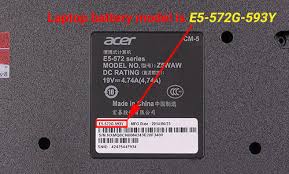
The most common place to find a label with your laptop’s make and model is on the underside of the device. Most manufacturers adhere a sticker here that contains important information. You’ll usually see the brand name, like Dell, HP, or Apple, listed as the make.
Following the brand name, you’ll find the model number or name. This is more specific, telling you the exact product line and configuration. For example, it might say “Inspiron 15” for Dell or “Spectre x360” for HP.
Look for terms like “Model,” “Product Name,” or a string of letters and numbers.
This sticker often includes other useful details too. You might see a serial number, which is unique to your specific unit. There could also be regulatory information and barcodes.
Take a moment to carefully read all the text on this sticker.
Example: On an older HP laptop, you might see a sticker that says:
- HP Pavilion dv6
- Model: dv6-3100
- Serial Number:
Here, “HP” is the make, and “Pavilion dv6” or “dv6-3100” is the model.
On The Screen Bezel Or Keyboard Area
Sometimes, the make and model information is also printed in smaller text near the screen or around the keyboard. This is less common for the full model name but might show the brand or series. Check around the edges of the screen, often on the bottom bezel, or near the function keys on the keyboard.
These markings are typically subtle and might be etched or printed very faintly. They are usually there for branding purposes or to quickly identify the product line. If the bottom sticker is damaged or missing, this is a good secondary place to look.
You might see a brand logo prominently displayed, like the Apple logo on MacBooks. For some models, the series name like “MacBook Air” or “ThinkPad” is printed in a visible spot.
Inside The Battery Compartment
For laptops with removable batteries, the make and model information is often located inside the battery compartment. You’ll need to carefully detach the battery to see this label. This was a common practice for older laptop designs.
Once the battery is removed, look for a sticker on the internal casing of the laptop. This sticker serves the same purpose as the one on the bottom, providing the make, model, serial number, and other technical details. It’s a hidden spot, so you have to go looking for it.
Scenario: Imagine you just bought a used laptop, and the sticker on the bottom is scratched off. You can’t power it on to check the system settings. You would then carefully remove the battery.
Inside, you find a clean sticker with the exact make and model you need.
Identifying Your Laptop Make And Model Using Software
If your laptop is working fine and you can turn it on, using the operating system’s built-in tools is a very reliable way to find your laptop’s make and model. This information is stored within the system’s hardware details. It’s accessible through different menus depending on whether you use Windows or macOS.
On Windows Devices
Windows provides several easy ways to find your laptop’s make and model. These methods are accessible to users of all technical skill levels. They present the information clearly, so there’s little room for confusion.
Using System Information
The System Information tool gives you a comprehensive overview of your hardware and software. To access it, press the Windows key and the R key together to open the Run dialog box. Type “msinfo32” and press Enter.
Once the System Information window opens, you will see “System Summary” selected by default. On the right side of the window, look for the lines labeled “System Manufacturer” and “System Model.” The System Manufacturer is your laptop’s make, and the System Model is its specific model name or number. This is a very direct way to get the details.
Example: In the System Information window, you might see:
- System Manufacturer: LENOVO
- System Model: ThinkPad X1 Carbon
This clearly shows the make is LENOVO and the model is ThinkPad X1 Carbon.
This tool also provides other valuable information about your system, such as the processor type, installed RAM, and operating system version. It’s a great resource for troubleshooting or identifying compatible software.
Using Windows Settings
You can also find your laptop’s make and model through the Windows Settings app. Click the Start button and select Settings (the gear icon). Then, go to System, and scroll down to “About.”
On the About screen, under “Device specifications,” you will find the “Device name,” “Processor,” “Installed RAM,” and “System type.” Below these, you will often see “Manufacturer” and “Model.” This is another quick and easy way to get the core information.
This section also allows you to rename your device and view your Windows specifications, including the edition and version. It’s a central hub for understanding your computer’s core features.
Using Command Prompt or PowerShell
For those who prefer using command-line tools, Command Prompt or PowerShell can also reveal your laptop’s make and model. Open Command Prompt by searching for “cmd” in the Start menu and selecting it. Type the following command and press Enter:
wmic computersystem get manufacturer,model
This command will display your laptop’s manufacturer (make) and model on a new line. It’s a quick way for tech-savvy users to pull up the information without navigating through graphical menus.
Statistic: According to Microsoft, over 90% of Windows users access settings through graphical interfaces, but command-line tools remain popular for system administrators and advanced users.
Scenario: A gamer wants to download drivers for their laptop’s graphics card. They can’t find the model sticker easily. By opening Command Prompt and typing the command, they quickly get the make and model, allowing them to find the correct drivers on the manufacturer’s website.
On macOS Devices
Apple makes it very simple to find the make (Apple) and model of your MacBook. All the information is consolidated in one easy-to-access menu.
Using “About This Mac”
Click on the Apple logo in the top-left corner of your screen. From the dropdown menu, select “About This Mac.” A window will pop up displaying a summary of your Mac’s hardware and software.
At the top of this window, you will see the model name of your MacBook, such as “MacBook Pro” or “MacBook Air.” Below that, it will specify the year of manufacture. While the year isn’t strictly part of the make and model name, it’s crucial for identifying specific hardware revisions.
Example: The “About This Mac” window might show:
- MacBook Pro (13-inch, M1, 2020)
Here, “Apple” is the make (implied by the logo and OS), and “MacBook Pro (13-inch, M1, 2020)” is the model.
This window also provides details about your processor, memory, graphics, and storage. You can click “More Info.” to get even deeper system details, similar to Windows’ System Information.
Case Study: Sarah needed to upgrade her MacBook’s RAM. She wasn’t sure which specific model she had, only that it was a MacBook. Using “About This Mac,” she quickly identified it as a “MacBook Air (Early 2015).” This allowed her to search for and purchase RAM sticks specifically compatible with that model, ensuring a successful upgrade.
Using System Report
For even more detailed information, click the “System Report.” button in the “About This Mac” window. This opens a comprehensive overview of all your Mac’s hardware components. You can find details about your display, storage, network, and much more.
While the primary make and model are readily available in “About This Mac,” the System Report is invaluable for identifying specific hardware components or troubleshooting. You can see the exact type of processor, the specific graphics card, and detailed information about your ports and peripherals.
Why Knowing Your Laptop Make And Model Is Important
Understanding your laptop’s make and model might seem like a small detail, but it’s surprisingly important for several reasons. Having this information readily available can save you time and frustration when you need to perform specific tasks or get support.
Driver Updates
Drivers are small software programs that allow your operating system to communicate with your hardware. When you need to update drivers for components like your graphics card, Wi-Fi adapter, or audio device, knowing your laptop’s exact make and model is crucial. Manufacturers provide specific drivers optimized for their hardware configurations.
Going to your laptop manufacturer’s support website and entering your make and model will lead you to a page with all the available driver downloads for your specific device. Using generic drivers might not offer the best performance or stability, and sometimes they won’t work at all.
Benefit: Updating drivers can improve performance, fix bugs, and add new features to your hardware. For example, graphics card driver updates often include optimizations for new games.
Scenario: Your laptop’s Wi-Fi keeps disconnecting. You visit the manufacturer’s support site, enter your make and model, and download the latest Wi-Fi driver. After installing it, your internet connection becomes stable.
Technical Support And Troubleshooting
When you encounter a problem with your laptop and need to contact technical support, the first thing they will ask for is your laptop’s make and model. This information helps them quickly identify your device and access its specifications and known issues.
Having this detail ready means you can get help faster. It also helps support staff determine if the problem is a common issue with your specific model or a more unique problem. This speeds up the diagnostic process significantly.
Example: If you call Dell support about a flickering screen on your “Dell XPS 15,” they can immediately look up common screen issues associated with that particular XPS model.
Software And Hardware Compatibility
When you’re looking to buy new software or hardware upgrades, like RAM or a new hard drive, knowing your laptop’s make and model ensures compatibility. Manufacturers design their systems with specific components in mind.
For example, a specific model of laptop might only support a certain type of RAM or have limitations on the storage capacity you can install. Checking the manufacturer’s specifications for your model prevents you from buying something that won’t work or might even damage your device.
Statistic: A survey found that 65% of consumers have experienced issues with incompatible hardware or software when upgrading their devices, highlighting the importance of checking specifications.
Resale Value
If you ever decide to sell your laptop, providing its exact make and model is essential. Buyers want to know what they are purchasing. This information helps them research the device’s features, performance, and reviews.
A clearly identified laptop with its correct make and model will likely fetch a better price than one where the information is vague or missing. It builds trust with potential buyers.
Common Myths Debunked
Myth 1: My laptop is a “Windows laptop” so the make and model are just “Windows”
Reality: “Windows” is the operating system, not the hardware manufacturer. The make refers to the company that built the laptop (like HP, Dell, Lenovo, Apple), and the model is the specific product name (like “Spectre x360,” “Inspiron 15,” “ThinkPad,” or “MacBook Pro”). You need both the manufacturer and the specific model to identify your device correctly.
Myth 2: All stickers on my laptop have the same information
Reality: While many stickers contain similar information, they can vary. The sticker on the bottom usually has the most comprehensive details, including the model number and serial number. Other stickers, like those near the keyboard or on the screen bezel, might only show the brand name or product series.
Myth 3: If I can’t find a sticker, my laptop has no make or model
Reality: This is untrue. Even if stickers are removed or damaged, the make and model are always stored within the laptop’s system software. You can easily find this information through Windows Settings or macOS’s “About This Mac” feature, as explained earlier in this guide.
Myth 4: The year printed on my Mac is the model name
Reality: The year in “About This Mac” is important for identifying the generation or specific revision of the MacBook model, but it’s not the complete model name itself. The model name includes the product type (e.g., MacBook Pro, MacBook Air) and often screen size or processor type, along with the year for specificity.
Frequently Asked Questions
Question: Where is the best place to look for my laptop’s make and model if it’s an older laptop?
Answer: For older laptops, the most reliable place is often a sticker on the bottom of the device or inside the battery compartment if the battery is removable. Software methods are also still valid if the laptop powers on.
Question: Do I need to know the make and model to install basic software like a web browser?
Answer: Generally, no. Most common software like web browsers, office suites, and media players are designed to work on a wide range of computers. You typically only need the exact make and model for hardware-specific drivers or upgrades.
Question: What if the model name has a lot of numbers and letters?
Answer: That’s normal! The numbers and letters often indicate specific configurations, like storage size, processor speed, or screen resolution. The main part of the model name usually comes before these details.
Question: Can I find the make and model if my laptop screen is broken?
Answer: Yes, if your laptop still powers on and the screen is the only issue, you might be able to connect it to an external monitor to access the software-based methods. Otherwise, you will need to rely on physical stickers on the laptop’s casing.
Question: Is the serial number the same as the model number?
Answer: No, the serial number is a unique identifier for your specific unit, like a fingerprint. The model number identifies the type of product. You need both for full identification, but the model number tells you what kind of device it is.
Conclusion
Finding your laptop’s make and model is a simple task that unlocks important functions. You can check labels on the device or use system tools in Windows or macOS. Knowing this detail helps you update drivers, get support, and ensure compatibility.
It’s an easy step to make your laptop experience smoother.