Sometimes figuring out your laptop model and serial number can be a little tricky when you’re new to computers. People often ask where to find these numbers, and it’s perfectly normal to feel a bit unsure. Don’t worry, though!
We’ll walk through it step-by-step so you can easily locate your laptop model and serial number. Get ready to learn some simple tricks that will make it a breeze.
Key Takeaways
- You will learn where to find your laptop’s model name.
- You will discover how to locate the unique serial number for your laptop.
- Easy methods for finding this information will be explained.
- Practical reasons for needing this information will be covered.
- Simple steps are provided for quick and accurate results.
What Is Your Laptop Model And Serial Number
Your laptop’s model and serial number are like its name and identification card. The model number tells you what kind of laptop it is, like a Dell Inspiron or an HP Spectre. The serial number is a unique code for that specific device, just for yours.
Think of it like your name and your social security number; one identifies the type, and the other identifies you individually.
These numbers are super important for many reasons. If your laptop needs repair, the technician will ask for them to know exactly what you have. When you contact the company for help or to check your warranty, they’ll need these details too.
And if you ever want to sell your laptop or trade it in, they help prove ownership and identify the device.
Why You Need Your Laptop’s Identifiers
Knowing your laptop’s model and serial number is helpful for several practical reasons. It allows you to find specific support articles and drivers for your exact device on the manufacturer’s website. This means you get software and updates that are made just for your laptop, ensuring it runs smoothly.
For example, if your Wi-Fi stops working, you can search for “Dell Inspiron 15 3000 Wi-Fi driver” to find the correct file. Without the model, you might download the wrong one, which could cause more problems. The serial number is especially useful for warranty claims.
It allows the manufacturer to look up your purchase date and warranty status quickly.
Here are some common situations where you’ll need this information:
- Getting technical support from the manufacturer.
- Checking your laptop’s warranty status.
- Downloading drivers or software updates.
- Registering your product.
- Selling or trading in your device.
Different Places To Find Your Identifiers
You can find your laptop model and serial number in a few different places. Some are on the laptop itself, while others are inside the computer’s software. We’ll go through the easiest spots first.
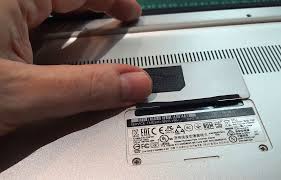
The most common place is on a sticker. These stickers are usually on the bottom of the laptop, or sometimes under the battery if it’s removable. You’ll often see labels like “Model” and “Serial Number” or “SN” printed there.
Finding Your Laptop Model And Serial Number On The Device
Looking at your laptop’s physical body is often the quickest way to find its model and serial number. Many manufacturers place this vital information on stickers. These stickers are typically small and often contain a barcode.
You’ll want to flip your laptop over to check the underside.
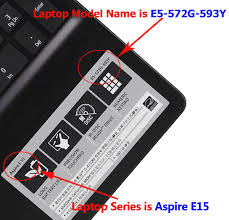
On the bottom of most laptops, you’ll find a sticker with various details. Look for clear labels like “Model,” “Product Name,” “Serial Number,” or abbreviations like “SN” or “S/N.” The model name might be something like “HP Pavilion x360” or “Lenovo ThinkPad T480.” The serial number will be a unique string of letters and numbers specific to your device.
Checking The Sticker On Your Laptop
Manufacturers place stickers in specific areas to make finding this information straightforward. For many laptops, the underside is the primary location. However, on some models, especially ultrabooks or 2-in-1 devices, the battery might be internal.
In such cases, the sticker might be placed on the side, near the ports, or even inside the battery compartment if it’s accessible.
When you find the sticker, take a clear picture of it with your phone. This way, if the sticker wears off over time, you’ll still have a record. Read the labels carefully.
Sometimes, the model name is printed in larger text, and the serial number is in smaller text.
Under The Battery
If your laptop has a removable battery, this is another prime spot for stickers. Carefully unlatch and remove the battery. Once it’s out, look inside the battery bay.
Often, a sticker is adhered to the inside surface where the battery usually sits.
This sticker will contain the same crucial information: the model number and the serial number. If your battery is not removable, this method won’t apply, and you’ll need to look for stickers elsewhere on the laptop’s exterior.
On The Packaging
If you still have the original box your laptop came in, this is an excellent place to find the model and serial number. Manufacturers usually print these details on a sticker or directly on the packaging itself.
Look for labels on the side or back of the box. It often mirrors the information found on the laptop’s stickers. This is a good backup if the stickers on your laptop are damaged or have faded.
Finding Your Laptop Model And Serial Number In Software
If you can’t find a sticker or it’s unreadable, you can easily get your laptop model and serial number directly from your operating system. This method is very reliable and works even if the physical labels are gone.
These identifiers are embedded within the laptop’s system information. Accessing them through Windows or macOS is usually a simple process. We’ll break down how to do this for the most common operating systems.
For Windows Users
Windows offers several ways to find your laptop’s model and serial number. One of the most straightforward methods is using the System Information tool.
Using System Information
Press the Windows key and the ‘R’ key on your keyboard simultaneously. This will open the Run dialog box. Type “msinfo32” into the box and press Enter, or click OK.
The System Information window will appear. On the right side, under the “System Summary” section, you will see entries for “System Model” and “System Serial Number.” The model is listed as “System Model,” and the serial number is usually labeled as “System Serial Number.”
For example, your System Model might read “HP Spectre x360 Convertible 13-ae573tu,” and your System Serial Number might be “CBO4151989.”
Using Command Prompt
Another quick way is through the Command Prompt. Click the Start button and type “cmd” to find the Command Prompt application. Right-click on “Command Prompt” and select “Run as administrator.”
In the black Command Prompt window, type the following command and press Enter:
wmic csproduct get name, identifyingnumber
This command will display your laptop’s model name and its serial number directly in the command window.
Here’s what it might look like:
| Name | IdentifyingNumber |
|---|---|
| Inspiron 14 5410 | ABC123XYZ789 |
For macOS Users
MacBooks also make it easy to find this information. Apple calls the serial number the “Serial Number” and the model name is typically found under “About This Mac.”
Using About This Mac
Click on the Apple logo in the top-left corner of your screen. Select “About This Mac” from the dropdown menu. A window will pop up showing a summary of your Mac.
At the top of this window, you will see the model name, such as “MacBook Air (M1, 2020).” To find the serial number, click the “System Report.” button. In the System Information window that appears, select “Hardware” in the left-hand sidebar if it’s not already selected. The serial number will be listed on the right under the “Hardware Overview.”
Using Terminal
You can also use the Terminal application. Open “Spotlight Search” by pressing Command key + Space bar. Type “Terminal” and press Enter.
In the Terminal window, type the following command and press Enter:
system_profiler SPHardwareDataType | grep -i “Serial Number”
This will directly display your MacBook’s serial number. To get the model name, you can use:
system_profiler SPHardwareDataType | grep -i “Model Name”
Why Are These Numbers Important
The laptop model and serial number are more than just random strings of characters; they serve critical functions for users and manufacturers alike. Understanding their importance can save you time and hassle when dealing with technical issues or managing your device.
For instance, when a new software update or driver is released, knowing your exact model ensures you download the compatible version. Using an incorrect driver can lead to performance issues, system instability, or even hardware malfunctions. Manufacturers design these updates specifically for certain hardware configurations, making the model number indispensable.
Warranty And Support
The serial number is your direct link to the manufacturer’s support and warranty services. When you contact customer support, they will almost always ask for your serial number first. This allows them to quickly identify your specific device, check its purchase date, and determine your warranty coverage.
Without this number, support staff would have to go through a much longer process, often asking for proof of purchase. With the serial number, they can access your device’s history and provide faster, more accurate assistance, whether it’s troubleshooting a problem or arranging a repair. Many manufacturers also have online portals where you can enter your serial number to register your product, check warranty status, and access support resources.
Statistics show that timely access to warranty information can significantly reduce customer frustration. A survey found that 75% of customers expect to be able to check their warranty status online easily using their product’s serial number. This highlights how crucial this identifier is for a good customer experience.
Driver And Software Updates
Each laptop model is built with specific components that require specialized drivers. Drivers are small software programs that tell your operating system how to communicate with hardware like your graphics card, Wi-Fi adapter, or touchpad.
When you visit a manufacturer’s support website, you’ll typically find a section for drivers and downloads. You’ll usually need to enter your laptop model or serial number to find the correct list of available software. This ensures you download the right versions that are compatible with your hardware and operating system.
Downloading drivers meant for a different model could cause conflicts or prevent certain features from working.
For example, a graphics driver for a high-end gaming laptop might not work correctly on a budget Chromebook, even if both run Windows. The model number helps filter these for you.
Identification And Resale Value
The serial number is also important for identifying your specific laptop for insurance purposes or if it’s lost or stolen. It provides a unique identifier that can help law enforcement track down stolen property.
When selling a used laptop, providing the model and serial number can also increase buyer confidence. It allows potential buyers to research the exact specifications and original features of the device. A well-documented laptop with a clear history might command a slightly higher resale value.
Common Myths Debunked
Myth 1: The serial number is the same as the product key.
This is a common misunderstanding. The serial number is a unique identifier for your physical laptop hardware. A product key, on the other hand, is typically used to activate software, such as your operating system (like Windows) or Microsoft Office.
While both are important, they serve entirely different purposes. The serial number is for hardware identification, while the product key is for software licensing.
Myth 2: The model number is only for marketing purposes.
While model numbers like “MacBook Pro” or “Dell XPS” are used in marketing, they are also crucial for technical support and finding compatible accessories. Each specific model within a series might have slight variations in hardware or features that require specific drivers or accessories. For example, different versions of the “MacBook Pro” might require different charging cables or screen protectors.
Myth 3: You can’t find the serial number if the stickers are gone.
This is not true. As shown in the software section, you can always access your laptop’s model and serial number through the operating system’s built-in tools, such as System Information in Windows or About This Mac in macOS. These numbers are stored in the laptop’s firmware and can be retrieved via software commands even if the physical stickers have faded or been removed.
Myth 4: The serial number can be changed.
For most users, the serial number is fixed and cannot be easily changed. It’s programmed into the hardware by the manufacturer during production. While advanced users might be able to alter certain firmware settings, attempting to change a serial number is generally not recommended, can void your warranty, and may even be illegal in some contexts, as it can be used for identification and tracking purposes.
Frequently Asked Questions
Question: What is the difference between a model number and a serial number?
Answer: The model number identifies the specific type or series of your laptop, like “HP Spectre x360.” The serial number is a unique code for your individual laptop, identifying that one specific device.
Question: Can I find my laptop’s serial number if it won’t turn on?
Answer: Yes, if your laptop won’t turn on, you can usually find the serial number on a sticker on the bottom of the laptop, under the battery, or on the original packaging.
Question: Where is the serial number located on a MacBook?
Answer: On a MacBook, you can find the serial number in “About This Mac” under System Report, or by typing a command in Terminal. You can also often find it on the bottom casing or inside the battery compartment if accessible.
Question: Is the serial number important for security?
Answer: Yes, the serial number is important for security. It helps identify your device if it’s lost or stolen, allowing authorities or manufacturers to track it and verify ownership.
Question: Do I need the model and serial number to register my laptop?
Answer: Yes, the laptop model and serial number are almost always required when registering your product with the manufacturer. This helps them track your device for warranty and support purposes.
Final Thoughts
You’ve learned how to easily find your laptop model and serial number using stickers on your device or through your computer’s software. These numbers are essential for support, warranty claims, and software updates. Now you know exactly where to look and what to do.