Figuring out your laptop’s exact model can sometimes feel tricky, especially if you’re new to computers. You might need it for buying accessories, getting support, or even selling it. It’s a common question people ask when they’re not sure where to look.
Don’t worry, it’s usually much simpler than it seems! This guide will walk you through the easiest ways to find out how to find laptop model, step by step. Let’s get your laptop identified quickly.
Key Takeaways
- You can find your laptop model on the physical device itself.
- Your laptop’s operating system provides detailed model information.
- The original packaging or receipt holds your laptop’s model number.
- Online accounts or manufacturer websites can help identify your device.
- Knowing your laptop model is important for support and upgrades.
Finding Your Laptop Model On The Device
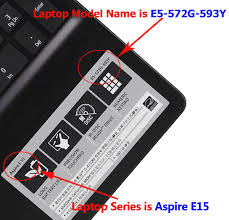
One of the most straightforward ways to discover your laptop’s model is by looking directly at the hardware. Most laptop manufacturers place a sticker or engraving on the laptop’s body that clearly states the model name. This sticker is usually found on the bottom of the laptop, but it can also be on the screen bezel, under the battery (if it’s removable), or sometimes on the keyboard deck.
These labels are designed to be easily visible for identification purposes.
Physical Stickers
Examine the underside of your laptop. You will likely find a sticker with various details about your device. Look for terms like “Model,” “Product Name,” or “Serial Number.” The model number is typically a combination of letters and numbers that uniquely identifies your specific laptop.
For example, you might see something like “HP Spectre x360 13-ae013dx” or “Dell XPS 13 9300.” Take your time and carefully read all the text on these stickers.
If your laptop has a removable battery, you might need to take it out to find a sticker underneath. This was more common on older laptop designs. However, with modern laptops, batteries are often integrated, so this method may not apply.
Always ensure you are careful when handling your laptop and avoid peeling off any stickers that look important.
Screen Bezel Labels
In some cases, the laptop model might be printed on the edge of the screen. This is often a small inscription near the webcam or along the side of the display. It might be less prominent than a sticker, so you may need good lighting and a close look to spot it.
Keyboard Deck Information
The area around your keyboard, often called the palm rest or keyboard deck, can also contain model information. Sometimes, a subtle etching or a small printed label is located here. Again, good lighting is key to finding these details.
Using Your Laptop’s Operating System
Even if the physical labels are worn off or hard to find, your laptop’s operating system holds all the necessary information. Both Windows and macOS provide easy ways to access your system’s details, including the exact model name. This is a reliable method that doesn’t depend on external labels.
For Windows Users
Windows makes it very simple to find your laptop model. You can use the System Information tool or a quick command prompt.
System Information Tool
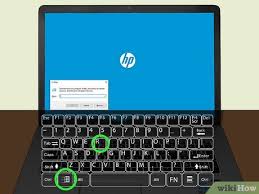
Press the Windows key and the R key together to open the Run dialog box. Type “msinfo32” and press Enter. This will open the System Information window.
Look for “System Model” in the right-hand pane. It will clearly display your laptop’s model name.
Another way is to go to Settings. Click on “System,” then scroll down and click on “About.” Under “Device specifications,” you will see “System model.” This is a very accessible location for finding the information you need.
Command Prompt
For those who prefer the command line, open Command Prompt by searching for “cmd” in the Windows search bar. Type the following command and press Enter: wmic computersystem get model. This will directly output your laptop’s model name.
These methods work across most recent versions of Windows, including Windows 10 and Windows 11. They are quick and provide accurate model identification.
For macOS Users
MacBook users can find their model information through the “About This Mac” feature.
About This Mac
Click on the Apple menu in the top-left corner of your screen. Select “About This Mac.” A window will pop up displaying an overview of your Mac. The model name will be clearly listed near the top, for example, “MacBook Pro (13-inch, M1, 2020)” or “MacBook Air (M2, 2022).”
For more detailed information, you can click the “More Info.” button, which will take you to System Settings where you can find serial numbers and other hardware specifics.
Checking Original Packaging Or Receipt
If you still have the box your laptop came in, that’s an excellent place to find the model number. The original packaging usually has a sticker or printed text displaying the exact product name and model number, often alongside the barcode. This is a definitive source of information.
Similarly, if you can find the purchase receipt or invoice, the laptop’s model should be listed there. This is especially true for online purchases where digital receipts are common. Check your email for order confirmations from the retailer where you bought the laptop.
The Original Box
Carefully inspect all sides of the box. Look for labels that contain product identification. This might be a large sticker or printed directly onto the cardboard.
The model number should be prominently displayed here for easy reference.
Purchase Receipts
Whether physical or digital, a receipt from the store or online retailer will list the product you bought. This is a reliable way to confirm your laptop’s model, especially if you’ve misplaced or cannot find the original packaging.
Using Online Accounts And Manufacturer Websites
Your laptop manufacturer’s website is a valuable resource for identifying your device. If you have an account with the manufacturer (like Dell, HP, Lenovo, Apple, etc.), you can often find a list of registered products linked to your account.
Manufacturer Support Websites
Most manufacturers have a support section on their website. You can often enter your laptop’s serial number (which is usually found on the same sticker as the model number) into a search tool. This tool will then provide detailed information about your specific laptop, including its model name.
For example, if you have an HP laptop, you can visit the HP Support website. They typically have a tool to detect your product or allow you to enter your serial number to find drivers and support information specific to your model.
Online Retailer Accounts
If you purchased your laptop from a major online retailer like Amazon, Best Buy, or others, you can often find your purchase history. Log in to your account, go to your order history, and find the entry for your laptop. The product description should clearly state the model name.
Why Knowing Your Laptop Model Matters
Identifying your laptop model is more than just a technical detail; it’s essential for many practical reasons. Having the correct model number ensures you get the right support, accessories, and upgrades.
Getting The Right Accessories
When you want to buy a new laptop bag, a protective case, an external keyboard, or a docking station, knowing your exact model ensures compatibility. Using accessories designed for your specific model prevents fit issues and ensures optimal performance. For instance, a case made for a 13-inch MacBook Air might not fit a 13-inch Dell XPS perfectly due to different dimensions and port placements.
Seeking Technical Support
If your laptop encounters a problem, the support technician will almost always ask for your laptop model. This allows them to quickly access relevant troubleshooting guides, driver updates, and known issues specific to your device. Without the correct model, diagnosing and solving problems becomes much harder and can lead to incorrect advice.
Driver Updates
Manufacturers release driver updates to improve performance, fix bugs, and enhance security. These updates are model-specific. Knowing your model ensures you download and install the correct drivers for your graphics card, Wi-Fi, audio, and other components, keeping your laptop running smoothly and securely.
Warranty And Repairs
When your laptop is under warranty or requires repair, the service center needs your precise model number to process your request. It helps them identify the parts needed and the warranty status of your device. This streamlines the repair process.
Common Myths Debunked
Myth 1 The sticker is always on the bottom
While the bottom is the most common place for a model sticker, it’s not the only location. As discussed, some manufacturers place them on the screen bezel, keyboard deck, or even inside the battery compartment. It’s always worth checking multiple spots.
Myth 2 You need to be a tech expert to find your laptop model
Absolutely not. The methods for finding your laptop model are designed to be user-friendly. Whether it’s a simple visual check or a few clicks in your operating system settings, anyone can find this information with a little guidance.
Myth 3 All laptops from the same brand have the same model number
This is incorrect. Brands like Dell, HP, or Lenovo produce many different lines and variations of laptops. Each specific configuration, screen size, and processor often has a unique model number to differentiate it from others, even within the same product series.
Myth 4 If the sticker is gone, you can’t find the model
This is false. The operating system methods, like System Information in Windows or “About This Mac,” are excellent alternatives. These software-based approaches provide the model information directly from the system’s hardware configuration, regardless of physical labels.
Frequently Asked Questions
Question: How do I find my laptop model if it’s a very old computer?
Answer: For older computers, physical inspection of the device is key. Look for stickers on the bottom, near the keyboard, or under the battery. If labels are worn, check your BIOS or UEFI settings by pressing a specific key (like F2, F10, or DEL) during startup.
Your operating system’s system information tool might also still work.
Question: Can I find the model using the serial number?
Answer: Yes, absolutely. Your serial number is a unique identifier. Most manufacturers have a support website where you can enter your serial number to retrieve detailed information about your laptop, including its exact model name.
Question: What if my laptop screen is broken and I can’t see the display?
Answer: If the screen is broken, you can connect an external monitor. Then, use the Windows system information tool or Command Prompt method as described above. If that’s not possible, you’ll need to rely on physical stickers on the laptop’s body or the original packaging/receipt.
Question: Does the model name include the processor type?
Answer: Generally, the core model name might not specify the exact processor. However, many model names will indicate the general series (like “Intel Core i7”) or a suffix that implies the processor generation or type. For precise processor details, you’ll need to check your system’s specifications within the operating system.
Question: How can I be sure I have the correct model number?
Answer: Cross-reference the information from multiple sources if possible. Check the physical sticker, your operating system’s system information, and your original purchase receipt or manufacturer’s website. If all sources agree, you have the correct model number.
Conclusion
You’ve learned several simple ways to find your laptop’s model. Whether you check the physical device, your operating system, or your purchase records, identifying your laptop model is straightforward. This information is vital for getting the right support and accessories for your device.
You can now confidently identify your laptop.