Figuring out what model a laptop is can feel tricky, especially when you’re just starting out. You might look at it and see a screen, a keyboard, and a bunch of symbols, but how do you know its name? It’s like trying to find a specific book in a huge library without knowing the title.
This post makes it easy. We’ll show you simple steps to find out what model is this laptop so you can get the information you need fast.
Key Takeaways
- You will learn easy ways to find your laptop’s model name.
- This guide explains where to look on the laptop itself.
- You will discover how to check your computer’s settings for the model.
- We cover how to use online searches with specific details.
- Finding your laptop model helps with support and upgrades.
Finding Your Laptop Model Name
Knowing your laptop’s exact model name is super helpful for many reasons. It helps you find drivers when you need to update your computer’s software. If you want to buy a new accessory, like a case or a screen protector, the model name ensures a perfect fit.
It’s also key if you ever need technical support. Knowing what model is this laptop means you can quickly tell the support person exactly what machine you have. This saves time and makes sure you get the right help.
Without it, you might end up with generic advice that doesn’t apply to your specific device.
Checking Your Laptop’s Exterior
Many laptop manufacturers put the model name right on the outside of the device. This is often the quickest and easiest place to start. Look around the screen bezel, the area surrounding the display.
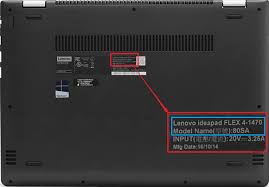
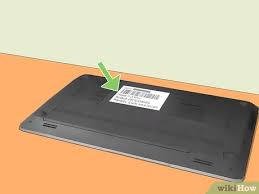
You might find the model name printed there, sometimes in small, discreet lettering. Also, check the bottom of the laptop. Most laptops have a sticker on the underside that lists important information, including the model number or name.
This sticker can also show the serial number and other technical details.
Sometimes the model name isn’t immediately obvious. It might be a combination of letters and numbers. For example, it could be something like “Inspiron 15 3000” or “Pavilion x360.” If you can’t find it on the screen bezel or the bottom, don’t worry.
There are other places to look.
- Look on the screen bezel The area around your laptop’s screen often has the model name printed on it.
- Inspect the bottom casing A sticker on the underside typically contains the model number.
- Check the keyboard area Sometimes, small labels are placed near the keyboard.
- Examine the original packaging If you still have the box, the model name will be on it.
The original box your laptop came in is also a great place to find the model name. If you’re lucky enough to still have it, check the labels or printing on the box. This will usually have the full model name and number.
This is a very reliable way to confirm your laptop’s identity.
Using Your Operating System Settings
If you can’t find the model name on the laptop itself, your computer’s software settings are the next best place to check. Both Windows and macOS have easy ways to find this information. This method is great because it works even if the exterior labels are worn off or missing.
On Windows Computers
For Windows users, finding the model name is quite straightforward. You can access system information without needing to restart your computer or search for stickers. This information is stored within the operating system itself.
- Click on the Start button (the Windows icon) in the bottom-left corner of your screen.
- Type “System Information” into the search bar and click on the result that appears.
- A new window will open showing details about your computer. Look for a field labeled “System Model.” This will display the exact model name of your laptop.
Alternatively, you can use a quick keyboard shortcut. Press the Windows key and the R key at the same time. This opens the Run dialog box.
Type “msinfo32” into the box and press Enter. The System Information window will pop up, and you can find the “System Model” just like before.
Here’s another simple way using Windows settings:
- Right-click on the “This PC” icon (it might be on your desktop or in File Explorer).
- Select “Properties” from the menu that pops up.
- A window will open showing basic system information. Look under the “Device specifications” or “Computer name, domain, and workgroup settings” section. You should see the “System model” listed there.
These Windows methods are very reliable and work on most versions of Windows, including Windows 10 and Windows 11.
On macOS Computers
For Apple MacBooks, finding the model name is just as simple. Apple makes it easy to access information about your device directly from the Apple menu.
- Click on the Apple logo in the top-left corner of your screen.
- Select “About This Mac” from the dropdown menu.
- A window will appear showing a summary of your Mac’s hardware and software. The model name will be clearly displayed at the top of this window.
This window also provides other useful information like the processor, memory, and macOS version. If you need more detailed information, you can click the “System Report” button. This opens a comprehensive overview of your Mac’s hardware and software components.
For older macOS versions, the process might be slightly different but still accessible through the Apple menu. The core idea remains the same: look for “About This Mac” or similar system information.
Searching Online with Key Information
Once you have some information, like a brand name and a partial model number or a unique feature, you can use online search engines to find the exact model name. This is especially helpful if the labels are hard to read or if you only have a general idea of what you’re looking for.
Start by searching for your laptop’s brand (e.g., Dell, HP, Lenovo, Apple, Acer, Asus). Then, add any numbers or letters you can find on the device or in the system information. For example, if you see “Dell” and “5500” on a sticker, you can search for “Dell 5500 laptop model.”
If you know the processor type (like Intel Core i5 or AMD Ryzen) or the screen size, you can include that in your search too. For example, “HP 14 inch laptop Intel Core i3.” This can help narrow down the results.
Look at the images that come up in your search results. Compare them to your laptop. You’re looking for an exact match in terms of design, port placement, and logos.
Websites like the manufacturer’s support pages or major online retailers often have detailed product listings that will confirm the model.
A good strategy is to search for “laptop model identifier” along with your brand. For instance, “Acer laptop model identifier.” This might lead you to pages that explain how to read their specific model numbers.
Understanding Laptop Model Numbers
Laptop manufacturers use a system of names and numbers to identify their products. These systems can sometimes seem confusing because they often don’t follow a simple, logical pattern that everyone can easily guess. Understanding how these model names are structured can help you identify what model is this laptop more accurately and quickly.
Manufacturer Naming Conventions
Each company has its own way of naming its laptops. For example, Dell uses series names like Inspiron, XPS, and Latitude. Within these series, there are model numbers like 13, 15, or 7000, indicating screen size or feature tier.
HP uses names like Pavilion, Envy, and Spectre, often followed by numbers and letters that denote specific configurations or generations.
Lenovo has lines like IdeaPad for general use, ThinkPad for business, and Legion for gaming. These often have further subdivisions. Apple’s MacBook line has variations like MacBook Air and MacBook Pro, with specific years or chip generations often used to differentiate models.
These naming conventions are designed to group similar laptops together. They help consumers understand the general purpose and features of a device at a glance. For instance, a “Pro” model usually indicates higher performance or more advanced features compared to a standard or “Air” model.
Here’s a look at some common naming conventions:
- Series Names Laptops are often grouped into series based on their intended use or market segment (e.g., Dell Inspiron for everyday use, HP Spectre for premium design).
- Model Numbers These are specific identifiers within a series, often including screen size (e.g., 13, 15) or performance indicators (e.g., 5000, 7000).
- Suffixes and Prefixes Letters or numbers at the end or beginning of a model name can denote specific configurations, such as graphics card type, processor generation, or color.
When you see a model name like “HP Pavilion Aero 13-be
Real-Life Example
Consider a laptop with the label “Lenovo IdeaPad Flex 5 Chromebook.”
“Lenovo” is the brand. “IdeaPad” is the series, indicating it’s part of Lenovo’s consumer laptop line. “Flex” suggests it’s a convertible or 2-in-1 laptop, meaning the screen can fold back.
“5” is a number that often signifies a mid-range model within the IdeaPad Flex series. “Chromebook” tells you it runs Google’s Chrome OS instead of Windows. This combination gives a clear picture of the laptop’s capabilities and target audience.
Without this information, trying to find compatible accessories or software would be much harder.
Importance of the Specific Model Number
While series names give a general idea, the specific model number is what truly identifies your laptop. This is because within a single series, there can be many variations. These variations affect the processor, RAM, storage, graphics card, and other key components.
Knowing the exact model number ensures you purchase compatible upgrades or replacements.
For example, two laptops might both be called “Dell Inspiron 15.” However, one could have an Intel i3 processor and 8GB of RAM, while another has an Intel i7 processor and 16GB of RAM. If you’re looking to upgrade your RAM, knowing the precise model number is essential to ensure the new RAM is compatible with your laptop’s motherboard and specifications.
When you contact customer support, they will almost always ask for the full model number. This allows them to quickly access your laptop’s specific configuration and troubleshooting guides. Without it, they’ll have to ask many more questions, slowing down the support process considerably.
In summary, don’t just settle for the series name. Always aim to find the complete model number. It’s the most precise identifier for your device.
This detailed identification is crucial for everything from driver downloads to warranty claims.
| Brand | Series Example | Specific Model Example | Key Information Conveyed |
|---|---|---|---|
| Dell | XPS | XPS 13 9310 | Premium line, 13-inch screen, specific generation/model number |
| HP | Pavilion | Pavilion Aero 13-be2000 | Consumer line, lightweight, 13-inch, specific configuration |
| Lenovo | ThinkPad | ThinkPad T14 Gen 3 | Business line, 14-inch screen, specific generation |
| Apple | MacBook Pro | MacBook Pro (14-inch M1 Pro, 2021) | Performance laptop, 14-inch screen, specific chip and year |
What to Do with Your Model Information
Once you know your laptop’s model name and number, you can use this information in several practical ways. It empowers you to get the most out of your device and keep it running smoothly. Think of it as your laptop’s identity card.
Getting Driver Updates
Drivers are small software programs that help your operating system communicate with your laptop’s hardware components, like the graphics card, Wi-Fi adapter, or sound card. Manufacturers release updated drivers to improve performance, fix bugs, and enhance security. To find the correct drivers, you need to know your exact laptop model.
Go to the support section of your laptop manufacturer’s website (e.g., dell.com/support, hp.com/support, support.apple.com). Enter your model number, and you’ll be presented with a list of available downloads specific to your machine.
Purchasing Accessories
When buying accessories like cases, screen protectors, keyboards, or docking stations, the model number is essential. For instance, a case designed for a “MacBook Air M2 13-inch” will not fit a “MacBook Pro 13-inch” because the dimensions and port placements are different. Using the model number ensures you buy accessories that are guaranteed to fit and function correctly with your specific laptop.
Troubleshooting and Support
If you encounter problems with your laptop, providing the correct model number to customer support agents or online forums will significantly speed up the troubleshooting process. They can quickly look up known issues, repair guides, or workarounds associated with your particular model. This targeted approach is much more effective than generic advice.
For example, if your laptop is overheating, the support agent can check if that specific model has known thermal issues or if there’s a BIOS update to improve cooling. This precise information is invaluable for efficient problem-solving.
Here are some scenarios where model information is key:
- Software Upgrade Issues You want to upgrade your operating system, but you’re unsure if your laptop meets the requirements. Knowing the model helps you check compatibility on the OS provider’s website.
- Hardware Repair A key component like the keyboard stops working. You need the exact model number to order the correct replacement part for your specific laptop.
- Warranty Claims If your laptop is still under warranty and you need a repair, you’ll need to provide the model number and serial number to the manufacturer to validate your claim.
Common Myths Debunked
There are a few common ideas people have about finding their laptop model that aren’t quite right. Let’s clear those up so you can find the information you need more easily.
Myth 1: The Brand Name Is Enough
Myth: Just knowing the brand name, like “Dell” or “HP,” is enough to identify your laptop model.
Reality: While the brand name is the first step, it’s not enough on its own. Most major brands make dozens, if not hundreds, of different laptop models.
Think of it like knowing you own a “car.” That’s a start, but you need to know if it’s a “sedan,” “SUV,” or “truck” and the specific make and model like “Toyota Camry” or “Ford F-150” to get accurate information or parts. The brand name alone doesn’t tell you about screen size, processor, or other key features.
Myth 2: All Stickers Are Useless
Myth: Those stickers on laptops are just for marketing and don’t contain useful model information.
Reality: Those stickers, especially the one on the bottom of your laptop, are often the most important place to find your model number and serial number. They are crucial for identifying your specific device for support, warranty, and driver downloads.
Don’t overlook them; they are packed with essential data.
Myth 3: It’s Too Complicated for Beginners
Myth: Figuring out a laptop model is a technical process that only computer experts can do.
Reality: Identifying your laptop model is actually quite simple, even if you’re not tech-savvy. As this guide shows, you can often find the information by just looking at the laptop’s exterior or by checking a few settings within your operating system.
The steps are easy to follow and don’t require any special knowledge.
Myth 4: The Model Name Never Changes
Myth: Once a laptop is released, its model name and number are fixed forever and don’t get updated.
Reality: While the core model name usually stays the same, manufacturers often release different configurations or updated versions of a model. These might have slight variations in their model number or a generational suffix (like “Gen 2” or “v2”).
This is why it’s important to get the most specific identifier you can, as it reflects the exact hardware configuration you have.
Frequently Asked Questions
Question: How do I find my laptop’s model if the screen is broken?
Answer: If your screen is broken, you can still find your laptop’s model by checking the stickers on the bottom of the laptop or by connecting it to an external monitor and checking the system information through the operating system settings, if you can navigate it.
Question: Can I find the model name without turning on the laptop?
Answer: Yes, you can often find the model name by looking at the stickers on the exterior of the laptop, especially on the bottom casing. Some manufacturers also print it on the bezel around the screen.
Question: What if my laptop is a custom build or very old?
Answer: For very old laptops, stickers might be gone. If it was custom-built, the model name might be less standard. In such cases, you might need to search for the manufacturer’s name and any identifying components you know (like the processor brand and model) to find similar devices online.
Question: Does the serial number help identify the model?
Answer: The serial number is unique to each individual laptop. While it helps identify your specific unit and is used for warranty purposes, it doesn’t directly tell you the model name. However, you can often look up a serial number on the manufacturer’s website to find out the model it belongs to.
Question: I see a product number and a model number. Which one do I need?
Answer: Typically, you need the model number for most purposes like driver downloads or compatibility checks. The product number might be more specific to a particular configuration. Check the manufacturer’s website or support documentation to see which identifier they primarily use for support.
Final Thoughts
Knowing exactly what model your laptop is makes a big difference. You can find this information easily by looking at the outside of your device or checking your computer’s settings. This guide walked you through simple steps for Windows and Mac.
Now you can confidently identify your laptop, which helps with updates, accessories, and getting support. You’ve got this!