Sometimes you need to know your laptop’s exact model number. This helps when you want to buy a new part, get software, or ask for help. It can seem tricky for new computer users to find this information.
Don’t worry, though! We’ll show you the easiest ways to get the model information on this laptop. Soon, you’ll know just where to look.
We’ll start by looking at the simplest methods right on your computer.
Key Takeaways
- You can find your laptop’s model number in Windows settings.
- The physical label on your laptop often has the model details.
- System Information offers a detailed view of your hardware.
- The command prompt can quickly show you the model name.
- Knowing your model number helps with upgrades and support.
Locating Model Information On This Laptop
Finding the specific model information on this laptop is a common need for many users. Whether you are trying to purchase compatible accessories, seek technical support, or simply want to know your device’s full specifications, this information is key. Many people find this process confusing because there are several places the model number might be hiding.
This guide will make it simple. We will walk through the most common and effective methods for finding your laptop’s model.
Using Windows Settings
Windows makes it quite easy to find your laptop’s model information. This is often the first and simplest place to check. You do not need any special tools or technical skills to access this data.
It’s built right into the operating system, ready for you to view.
-
Open Settings. Click the Start button, then click the gear icon. This opens the Windows Settings app.
The Settings app is a central hub for controlling all aspects of your computer. It’s organized into categories like System, Devices, Phone, Network & Internet, Personalization, Apps, Accounts, Time & Language, Gaming, Ease of Access, Search, and Privacy. Finding specific information is usually straightforward within these menus.
-
Go to System. In the Settings app, click on the ‘System’ category. This section contains information about your display, sound, notifications, power, and storage.
The System category is where you’ll find details about your computer’s core functions. You can adjust screen brightness, manage sound input and output devices, set up notifications, and check your storage space. It also houses the important ‘About’ page where your model information resides.
-
Find About. Scroll down the left-hand menu in the System settings and click on ‘About’. This page displays a summary of your system’s specifications.
The ‘About’ page is designed to give you a quick overview of your computer’s hardware and software. Here, you can see your Windows edition, version, and installation date. Most importantly for this task, it lists details about your device, including the manufacturer and model name.
-
Look for Device specifications. On the About page, you will see a section labeled ‘Device specifications’. Under this, you should find your laptop’s Manufacturer and Model name.
The ‘Device specifications’ section provides a concise list of your computer’s key components. This includes your processor, installed RAM, and system type. The ‘Model name’ listed here is the primary identifier you are looking for.
It’s usually displayed clearly and is easy to copy if needed.
Checking Physical Labels
Many laptops have a physical label that contains important information, including the model number. This label is usually located in a discreet place on the device. It serves as a direct identifier from the manufacturer.
-
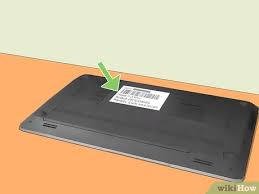
Examine the bottom of your laptop. Most laptops have a sticker or plate on the underside. This is a very common location for manufacturer labels.
Turning your laptop over is often the quickest way to find a wealth of information. Manufacturers place these stickers on the bottom so they are out of the way during normal use but still accessible when needed. These labels are typically white or silver and may contain barcodes and serial numbers as well.
-
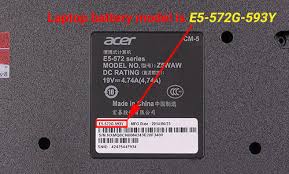
Look for the Model Number or Product Name. On this label, search for terms like “Model,” “Product Name,” “Model No.,” or similar phrasing. The text next to these terms is your laptop’s model number.
The stickers contain various pieces of information. You might see the manufacturer’s name, the model name, a serial number, and sometimes regulatory information. It’s important to distinguish the model number from the serial number, as they serve different purposes.
The model number is what identifies the specific product line and configuration.
-
Check other areas if needed. If you don’t find it on the bottom, sometimes a label can be found under the battery (if it’s removable) or on the screen bezel.
While the bottom is the most common spot, some older laptops with removable batteries might have the label underneath. Very rarely, a small label could be on the side or near the keyboard. However, always prioritize the bottom sticker as it is the most standard location.
Using System Information Tool
Windows also includes a powerful tool called System Information that provides a comprehensive overview of your hardware and software. This can be very useful for finding detailed model information on this laptop and other specs.
-
Open System Information. Press the Windows key + R to open the Run dialog box. Type “msinfo32” and press Enter.
The Run dialog box is a quick way to launch applications or open files by typing their command. ‘msinfo32’ is the command that directly opens the System Information utility without you needing to search through menus.
-
Locate System Summary. When System Information opens, the ‘System Summary’ should be selected by default.
The System Summary is the first screen you see. It’s a dashboard of your computer’s basic configuration. It lists your operating system name, version, manufacturer, and importantly, your system model.
-
Find ‘System Model’. In the System Summary, look for the line labeled ‘System Model’. This will display the exact model name of your laptop.
This specific line item in the System Summary is dedicated to identifying your laptop’s exact model. It’s often more precise than what you might see in the basic ‘About’ settings. This is a reliable source for accurate model information on this laptop.
Command Prompt for Model Information
For those who prefer using the command line, the Command Prompt offers a quick way to retrieve your laptop’s model information. This method is fast and efficient, especially if you’re already comfortable with basic command-line tools.
-
Open Command Prompt. Search for “cmd” in the Windows search bar and click on “Command Prompt.”
Command Prompt, also known as the terminal or console, is a powerful text-based interface. It allows you to execute commands to perform various tasks on your computer. It’s a direct way to interact with the Windows operating system.
-
Type the command. In the Command Prompt window, type the following command and press Enter: `wmic computersystem get model`
This command uses the Windows Management Instrumentation Command-line (WMIC) tool. It specifically asks for the ‘model’ property from the ‘computersystem’ product. It’s a very direct query for your laptop’s model name.
-
View the model. The command will output your laptop’s model name directly below the command.
After you press Enter, the command prompt will process your request and display the result. The output is usually just the model name, making it very easy to read and note down. This is a quick way to get the exact model information on this laptop.
Why Model Information Matters
Knowing your laptop’s precise model information on this laptop is more than just a number; it’s your key to many important functions. It helps you get the right support and accessories. It’s also crucial for software compatibility and upgrades.
-
Purchasing Accessories and Parts
When you need a new battery, a
-
Seeking Technical Support
If you encounter a problem with your laptop and need to contact customer support, the first thing they will ask for is your model number. This allows them to quickly access specific troubleshooting guides, known issues, and solutions for your particular device. Without this information, support agents would have to guess, making the process much longer and less effective.
They can tell you about available warranty services or software updates tailored to your model.
-
Software and Driver Compatibility
Many software applications and hardware drivers are model-specific. When downloading drivers for your graphics card, Wi-Fi adapter, or other components, you need to select the correct ones for your laptop model. Installing the wrong drivers can cause these components to malfunction or not work at all.
Similarly, some software might have specific system requirements that relate to certain laptop models.
-
Understanding Performance Capabilities
The model number often gives a hint about the laptop’s intended use and performance capabilities. For example, a model named “Gaming Laptop Pro” will likely have high-end specifications suited for gaming, while a model called “Business Ultrabook” might focus on portability and battery life. This can help you understand what your laptop is capable of and how to best use it.
Common Myths Debunked
Myth 1: All laptops from the same brand are interchangeable.
This is a common misconception. While laptops from the same brand share some similarities, each model is designed with specific components and configurations. For example, a Dell Inspiron 15 may have a different processor, screen resolution, or port selection than a Dell Latitude 15.
This difference is why knowing the exact model is crucial for compatibility, especially with parts and software.
Myth 2: The serial number is the same as the model number.
Many users confuse the serial number with the model number. The model number identifies the product line and its general specifications (e.g., HP Spectre x360 13-ap0
Myth 3: You need to be a computer expert to find the model information.
Finding your laptop’s model information is surprisingly simple and requires no advanced technical skills. As shown in this guide, you can find it through basic Windows settings, by looking at a physical sticker, or by using a simple command. These methods are designed to be accessible to all users, regardless of their computer knowledge.
Frequently Asked Questions
Question: Where is the best place to start if I need to find my laptop’s model information?
Answer: The easiest place to start is by looking in your Windows settings under System, then About. This usually displays your laptop’s model name clearly.
Question: Can I find the model number if my laptop won’t turn on?
Answer: Yes, if your laptop won’t turn on, you can usually find the model number on a sticker located on the bottom of the laptop. Sometimes it might be under the battery if it’s removable.
Question: How do I know if a part is compatible with my laptop model?
Answer: Always check the product description for the part and compare it with your laptop’s specific model number. Manufacturers provide lists of compatible models for their accessories and replacement parts.
Question: Is the model information the same as the product name?
Answer: Generally, yes. The term “model information” and “product name” often refer to the same identifier that tells you the specific type and configuration of your laptop.
Question: Why do some laptops have long model numbers with extra characters at the end?
Answer: Those extra characters often indicate specific configurations or regional variations of the base model. For example, a model might have different RAM or storage options indicated by these suffixes.
Summary
Finding the model information on this laptop is straightforward. You can use Windows settings, check the sticker on your laptop, or use system tools. Knowing your model number helps you get the right accessories and support.
It ensures your laptop runs at its best.