Figuring out your laptop’s model can sometimes feel tricky, especially if you’re new to computers. You might need this information for software updates, finding drivers, or even when selling your old device. Don’t worry if it’s not immediately obvious; many people wonder how do i find the model of my laptop.
This guide will show you the simplest ways to get that exact information, step by step, so you can get what you need done quickly.
Key Takeaways
- You can find your laptop model in several easy ways.
- Checking the physical parts of your laptop often shows the model name.
- Your laptop’s operating system has built-in tools to reveal its model.
- You can look up your laptop model using its serial number.
- Knowing your laptop model helps with updates and support.
Finding Your Laptop Model Information
Knowing your laptop’s model is super useful. It helps you get the right software, find
Check the Laptop’s Physical Label
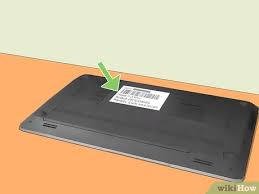
Many laptops have a sticker on the bottom or inside the battery compartment that lists the model name and number. This is often the quickest way to find out what you have.
Look for a label that says something like “Model,” “Product Name,” or “Serial Number.” The model name is usually printed clearly. For example, a sticker might say “Dell XPS 13” or “HP Spectre x360.” Some stickers might be small, so you might need good light to see them. If your laptop is older, the sticker might have worn off a bit.
Some laptops hide this information better. For instance, some manufacturers put the model number on the screen bezel or near the keyboard. Always check these common spots first.
If the sticker is gone or unreadable, don’t fret, there are other ways to find your model.
Using Windows System Information
Your computer’s operating system keeps track of all its parts, including the model name. Windows has a tool that shows you this information in a clear way.
To open System Information, click the Start button and type “System Information.” Then, click on the app that shows up. In the System Information window, look for the “System Model” line under the “System Summary” section. This will tell you the exact model of your laptop.
This is a great method because it uses information directly from your computer’s hardware. You don’t need to look for stickers or turn your laptop over. The information is always accurate.
This method works for most Windows laptops, regardless of their age or manufacturer.
Using macOS System Information
For Mac users, finding the laptop model is just as easy. Apple makes it simple to find out what Mac you have.
Click the Apple icon in the top-left corner of your screen. Then, select “About This Mac.” A window will pop up showing you a summary of your Mac. The model name and year will be listed right there.
For example, it might say “MacBook Pro (13-inch, M2, 2022).”
This feature is built into macOS and provides a clear overview of your hardware. It’s useful not just for the model name but also for checking your processor, memory, and graphics card. This information is vital for software compatibility and upgrades.
Checking the Original Box or Manual
If you still have the box your laptop came in, or the user manual, the model name will be printed on them. This is a foolproof way to find the information.
The original packaging often has a label with the product name, serial number, and model number. The user manual, if you kept it, will also mention the exact model of your device. This is a good option if other methods don’t work or if you want to be extra sure.
Keep in mind that many people throw away these boxes and manuals. If you’re someone who likes to keep things tidy, you might not have them handy. But if you do, it’s a straightforward way to get the answer you need.
Using the Command Prompt (Windows)
For those who are a bit more comfortable with computers, the Command Prompt offers another way to find your laptop’s model. This method is quick and doesn’t require any physical inspection.
Open the Command Prompt by searching for “cmd” in the Windows search bar and pressing Enter. Once the black window appears, type the following command and press Enter: wmic computersystem get model.
The command prompt will then display your laptop’s model name. This is a technical but very reliable method. It pulls the information directly from the system’s firmware.
It’s a favorite for tech-savvy users who want to quickly access system details.
Using Terminal (macOS)
Similar to Windows, macOS users can use the Terminal to find their laptop model. This is a command-line interface that allows for more advanced system interaction.
To open Terminal, go to Applications > Utilities > Terminal. In the Terminal window, type the following command and press Enter: system_profiler SPHardwareDataType | grep “Model Identifier.”
This will output a line showing your Mac’s model identifier. While it might seem a bit more cryptic than “About This Mac,” this information is very precise. It’s often used by developers and support staff.
For instance, it might show something like “MacBookPro18,3.”
Checking Manufacturer Websites
If you know the brand of your laptop (like Dell, HP, Lenovo, etc.) but can’t find the model on the device itself, you can often find it on the manufacturer’s support website.
Visit the support section of your laptop brand’s website. There’s usually an option to identify your product by entering your serial number. If you know your serial number (often found on a sticker on the bottom), you can input it, and the website will tell you the exact model of your laptop.
This is particularly useful if stickers are missing or unreadable. Manufacturers keep extensive databases of their products. This method ensures you get the most accurate model information for support and driver downloads.
Why Knowing Your Laptop Model Matters
Understanding how to find your laptop’s model is more than just a technicality. It opens up possibilities for keeping your device running smoothly and getting the most out of it. Let’s explore why this piece of information is so important.
Getting the Right Software and Drivers
One of the main reasons you need to know your laptop model is for software and driver updates. Drivers are small programs that help your operating system communicate with your laptop’s hardware, like the graphics card, Wi-Fi adapter, or sound card.
When a manufacturer releases new drivers or software updates, they are often specific to certain laptop models. Using the wrong driver can cause problems, like your Wi-Fi not working or your screen resolution being incorrect. By knowing your model, you can visit the manufacturer’s website and download the exact drivers and software meant for your device, ensuring everything works as it should.
For example, if you have a gaming laptop, you’ll want the latest graphics drivers for better performance. If you have a business laptop, you might need specific security software updates. Having the correct model information means you can find these vital updates easily.
Troubleshooting Issues
When your laptop encounters problems, knowing the exact model is a huge help for troubleshooting. Support technicians or online forums can provide much more specific advice if they know your laptop’s model.
Imagine your laptop is making strange noises or not turning on. If you tell a support agent you have a “HP Pavilion,” they might ask for more details. But if you say “HP Pavilion dv6-3000,” they can immediately access common issues and solutions related to that specific line of laptops.
This can save you a lot of time and frustration.
Many common problems are model-specific. For instance, certain older laptop models might have known issues with their cooling systems or specific hardware components. Knowing your model allows you to search for these known issues and find solutions more effectively.
Purchasing Accessories and Upgrades
If you plan to buy new accessories, like a laptop bag, a docking station, or upgrade components such as RAM or a solid-state drive (SSD), knowing your laptop model is essential.
Laptop bags are often designed to fit specific screen sizes and dimensions. A bag made for a 13-inch laptop might not fit a 15-inch model. Similarly, docking stations or external peripherals might have compatibility requirements.
Using a docking station designed for a specific Dell XPS model, for example, will ensure all ports and features work correctly.
When it comes to upgrades, compatibility is key. Not all RAM modules or SSDs will work with every laptop. You need to know your laptop model to check what type of RAM it supports (e.g., DDR4, DDR5) and what form factors for storage devices are compatible (e.g., 2.5-inch SATA, M.2 NVMe).
This prevents you from buying parts that won’t work.
Selling Your Laptop
If you decide to sell your old laptop, providing the exact model name is crucial for potential buyers. It tells them the specifications, age, and capabilities of the device.
Buyers often search for specific models when looking for used laptops. Knowing the model helps them compare prices and features with other listings. A clear model name also builds trust, as it shows you’re being transparent about what you’re selling.
You can also research the typical selling price for that specific model online.
For instance, if you list your laptop as “Apple MacBook Pro,” buyers might be unsure if it’s a 2015 model or a 2022 model. Listing it as “Apple MacBook Pro (15-inch, 2019)” gives them precise information. This detail can significantly impact how quickly your laptop sells and for what price.
Contacting Customer Support
When you need to contact a manufacturer’s customer support for help, having your laptop’s model number ready will speed up the process immensely.
Support agents often use your model number to quickly look up your device’s history, warranty status, and specific technical details. This allows them to provide faster and more accurate assistance. Instead of spending time describing your laptop, you can get straight to the problem you’re experiencing.
For example, if your laptop’s screen has an issue, and you tell the support agent the model, they can instantly check if that particular model has known screen defects or specific repair procedures. This efficiency benefits both you and the support team.
Common Myths Debunked
Myth 1: All laptops from the same brand have identical model names.
This is not true. While a brand like HP makes many laptops, they have numerous distinct model lines and specific model numbers. For instance, HP has Pavilion, Spectre, Envy, and EliteBook series, and within each series, there are many different models (e.g., HP Spectre x360 14-ea2000).
Myth 2: The laptop’s serial number is the same as its model number.
No, they are different. The serial number is a unique identifier for your specific device, like a fingerprint. The model number, however, identifies the product line and configuration.
You often need both for support, but they are not the same.
Myth 3: You can only find the model name by looking at a sticker on the laptop.
This is false. While stickers are common, as we’ve seen, you can also find the model name through your operating system’s software (like System Information on Windows or About This Mac on macOS), or via the command line. These software methods are often more reliable if stickers are worn or missing.
Myth 4: Finding the model name is only for technical people.
This is a misconception. The methods for finding your laptop model are designed to be user-friendly. Whether it’s a sticker on the device or a simple menu option in your operating system, the process is straightforward and accessible to everyone, regardless of their technical skill level.
Frequently Asked Questions
Question: What if the sticker on my laptop is unreadable?
Answer: If the sticker is unreadable, you can use your operating system’s built-in tools. On Windows, search for “System Information” and look for “System Model.” On macOS, click the Apple icon and select “About This Mac.”
Question: Can I find my laptop model if I don’t have the original box?
Answer: Yes, you can. The easiest ways are through your operating system’s system information tool or by checking the physical labels on the laptop itself. Manufacturer websites can also help if you know your serial number.
Question: Is it important to know my exact laptop model number or just the series name?
Answer: Knowing the exact model number is best. While the series name (like “Dell Inspiron”) gives a general idea, the model number (like “Inspiron 15 5000”) provides specific details needed for precise driver downloads, support, and accessory compatibility.
Question: How do I find the serial number to use on manufacturer websites?
Answer: The serial number is usually found on a sticker on the bottom of the laptop, near the model name. It can also sometimes be found in the System Information on Windows or About This Mac on macOS. Some manufacturers also display it during startup.
Question: What should I do if I find multiple numbers on my laptop?
Answer: Look for labels that specifically say “Model,” “Product Name,” or “Model Number.” Serial numbers are usually unique strings of letters and numbers. If you’re unsure, use the operating system’s built-in tools, which will clearly identify the system model.
Summary
You now know multiple simple ways to find your laptop model. Whether checking a sticker, using your computer’s software, or even looking at old packaging, getting this information is easy. This knowledge helps you keep your laptop updated, fix problems, and get the right accessories.
You can now confidently identify your device for any need.