Sometimes, finding specific laptop model information can feel like a puzzle, especially if you’re new to computers. You might need it for a quick software update, a repair, or even to sell your device. Don’t worry, it’s not as hard as it seems.
We’ll walk through it step-by-step so you can find exactly what you need without any confusion. Get ready to learn how simple it can be!
Key Takeaways
- You will learn where to find your laptop’s exact model number.
- We will show you how to check this information using Windows.
- We will explain how to find model details on a Mac.
- You will discover how to look at the physical label on your laptop.
- We will cover what to do if you still can’t find the information.
Identifying Your Laptop Model Information
Knowing your laptop’s specific model number is super useful. It helps you find the right drivers, software updates, and accessories. It’s also important if you ever need technical support or want to sell your computer.
Many people find this tricky at first because there are a few different ways to check. But we’re going to break it down into simple steps. You’ll be a pro at finding your laptop model information in no time.
Why Laptop Model Information Matters
Your laptop’s model name and number are like its unique ID. Manufacturers make many different types of laptops, and each one has specific features and capabilities. For example, a gaming laptop will have different internal parts than a small laptop meant for just browsing the web.
When you need to download new software or drivers, the manufacturer’s website will ask for your exact model. This ensures you get the correct files. Using the wrong ones can cause problems.
Also, if your laptop needs repair, a technician will ask for the model number to know exactly what kind of hardware they are dealing with. This helps them diagnose the issue faster. Even when buying accessories like protective cases or docking stations, knowing your model is key.
A case made for one model might not fit another, even if they look similar. So, it’s always a good idea to know where to find this vital piece of data.
Finding Laptop Details on Windows
Windows operating systems offer a few straightforward ways to find your laptop model information. The most common method is through the System Information tool or by checking the System Properties. These tools provide a clear overview of your hardware, including the exact manufacturer and model.
Using System Information
This is one of the most detailed ways to get your laptop model information on Windows.
- Click the Start button.
- Type “System Information” in the search bar.
- Click on the “System Information” app that appears.
Once the System Information window opens, you will see a summary on the right side. Look for the line that says “System Model.” This will show you the exact model number of your laptop. It’s usually very clear.
Checking System Properties
This is a quicker way to see basic system information, including your model.
- Right-click on the “This PC” icon (or “My Computer” on older Windows versions).
- Select “Properties” from the menu.
A new window will open showing your Windows edition and device specifications. Under the “Device specifications” section, you will find your “System model.” This is a fast way to get the essential laptop model information.
Locating Laptop Model on a Mac
For Apple users, finding your Mac’s model information is just as easy. macOS has a dedicated “About This Mac” feature that gives you all the details you need about your hardware.
Using About This Mac
This is the main place for all your Mac’s specifications.
- Click on the Apple menu in the top-left corner of your screen.
- Select “About This Mac.”
A window will pop up showing a summary of your Mac. The “Overview” tab will display your Mac’s model name and year. For more detailed laptop model information, you can click on “System Report.” This will show you a much more in-depth list of your Mac’s hardware components.
Physical Labels on Your Laptop
Sometimes, the easiest way to find your laptop model information is to look at the laptop itself. Most manufacturers place stickers or labels on the device that contain these details.
Where to Look
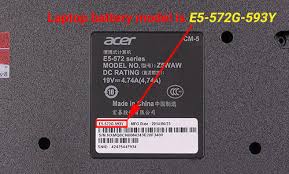
Check the bottom of your laptop. You’ll usually find a sticker there with the manufacturer’s logo, model name, serial number, and other technical specifications. Some laptops also have a label near the keyboard, often just below it or around the battery area if it’s removable.
These labels are essential for quick identification. They are designed to be easily accessible. Even if your laptop is older, these stickers are usually quite durable.
The model number might be printed as “Model,” “M/N,” or “Product Name.” It’s important to write this down or take a clear photo of the sticker for future reference.
What the Label Tells You
The label typically includes more than just the model name. You might also find a serial number, which is unique to your specific device. This serial number is important for warranty claims and for tracking your device if it gets lost or stolen.
You’ll also often see regulatory information and barcode details. The most critical part for your needs is the clear “Model Name” or “Model Number” printed on the sticker.
What If You Still Can’t Find It
If you’ve tried the software methods and checked all the physical labels and are still struggling to find your laptop model information, there are still a couple of things you can do. Don’t get discouraged; there’s always a way to get the information you need.
Check Your Purchase Records
Think back to when you bought your laptop. If you purchased it online, check your order confirmation email or your account history on the retailer’s website. This record will most likely contain the exact model name and number of your device.
Online retailers keep detailed logs of all transactions.
If you bought it in a store, you might have a physical receipt. Look for the product name and model number listed on the receipt. Sometimes, the packaging itself will have this information printed clearly on it, even if you no longer have the box.
Consult the Manufacturer’s Website
If you know the brand of your laptop (e.g., Dell, HP, Lenovo, Apple), you can often find a support section on their official website. Many manufacturer support pages allow you to enter your serial number (which you might find on the physical label) to automatically identify your laptop model and its specifications. They often have a tool or a way to look up your device’s full laptop model information.
Troubleshooting Common Issues
Sometimes, finding your laptop model information might come with a few hiccups. One common problem is that the sticker might be worn off or illegible. Another issue could be confusion between a product line name and a specific model number.
For example, “Inspiron” is a product line for Dell, but the specific model might be “Inspiron 15 5000.”
Worn-Off Labels
If the sticker on your laptop is no longer readable, don’t worry. The software methods mentioned earlier are usually your best bet. The System Information tool in Windows or “About This Mac” on a Mac are reliable and won’t be affected by physical wear and tear.
If you are using Windows and can’t read the sticker, try the command prompt. Open Command Prompt by searching for “cmd” in the Start menu. Then type `wmic computersystem get model` and press Enter.
This command will directly display your system model. For Macs, the “About This Mac” feature is always available.
Confusing Product Names
Some manufacturers use broad names for their laptop series. For instance, “MacBook Air” or “HP Spectre” are families of laptops. Within these families, there are specific models that differ in screen size, processor, and other features.
It’s important to find the precise model number, which often includes numbers and letters.
When using system information tools, look for the most specific name. If it says “MacBook Air,” click on “More Info” or “System Report” to find the specific model identifier, such as “MacBook Air (M2, 2022).” For Windows, the model might look something like “HP Spectre x360 13-ae013dx.”
Case Studies: Real-World Scenarios
Let’s look at a couple of situations where knowing your laptop model information saved the day.
- Sarah wanted to upgrade her laptop’s RAM. She knew her laptop was a Dell, but she wasn’t sure of the exact model. She checked the bottom of her laptop, but the sticker was mostly peeled off. She used the System Information tool on Windows, which clearly showed her “System Model” as “Dell Inspiron 15 3511.” With this precise laptop model information, she was able to confidently buy the correct RAM modules online, and her laptop’s performance improved significantly.
- Mark needed to download a specific driver for his Wi-Fi card after a Windows update caused issues. He couldn’t find any labels on his Lenovo laptop. He went to “This PC,” right-clicked, and chose “Properties.” Under “Device specifications,” he saw “System model: IdeaPad 3 15ITL6.” He then went to the Lenovo support website, entered this model number, and downloaded the correct Wi-Fi driver, fixing his internet connection problem quickly.
Benefits of Knowing Your Laptop Model
There are several advantages to keeping track of your laptop model information. It makes everyday tasks much simpler and can save you time and money when issues arise. It’s a small detail that has big practical benefits.
Software and Driver Updates
Manufacturers release updates for your operating system, drivers, and firmware to improve performance, fix bugs, and enhance security. When you visit the support page for your laptop brand, you’ll need your exact model number to find the correct downloads. Using generic drivers can lead to instability or hardware malfunctions.
Knowing your specific laptop model information ensures you install compatible and up-to-date software.
For instance, graphics card drivers are particularly sensitive to the exact hardware configuration. If you have an NVIDIA GeForce RTX 3060 in a specific laptop model, the driver needs to be optimized for that particular chassis and cooling system. Generic drivers might not work correctly or could cause overheating.
This highlights why precise laptop model information is crucial for keeping your system running smoothly and safely.
Warranty and Support
When your laptop is under warranty and you need technical support or repair, the manufacturer will almost always ask for your model number and serial number. This allows them to quickly identify your device, check its warranty status, and understand its specifications. Having this information readily available speeds up the support process.
Imagine calling support with a broken screen. If you can immediately provide “HP Pavilion Aero 13-be0000 Series” and the serial number, the support agent can pull up your device’s history and warranty terms without delay. This means faster service and less frustration for you.
Without this key laptop model information, the process can be significantly longer as they try to identify your device.
Purchasing Accessories
Buying accessories like laptop sleeves, cases, screen protectors, or docking stations requires knowing your exact model. While many accessories are universal, others are designed for specific dimensions and features. A case for a 15-inch MacBook Pro might not fit a 15-inch Dell XPS, even if the screen size is the same.
The bezels, port placement, and chassis thickness can differ.
For example, a docking station designed for a specific Dell Latitude model might have ports that align perfectly with that laptop’s underside or side. A different Dell model, or even a laptop from another brand, might not have the correct port alignment or power delivery support, rendering the docking station useless or inefficient. Accurate laptop model information prevents costly mistakes and ensures you buy accessories that fit perfectly.
Common Myths Debunked
Myth 1: My laptop model information is the same as its operating system version.
This is incorrect. Your operating system version (like Windows 10 or macOS Ventura) refers to the software that runs your computer. Your laptop model information refers to the physical hardware itself – the make and specific model number of the device.
They are distinct pieces of information.
Myth 2: All laptops of the same brand have the same model number.
This is false. Major brands like Dell, HP, Lenovo, and Apple produce many different laptop lines and models. For example, Dell has Inspiron, XPS, and Latitude lines, each with numerous specific models.
Even within the same line, like the HP Spectre series, there are different screen sizes, processors, and configurations that result in unique model numbers.
Myth 3: Finding my laptop model information is only important for IT professionals.
This is a common misconception. While IT professionals frequently use this information, it is also very useful for everyday users. Knowing your laptop model number helps you find the right software updates, troubleshoot problems, purchase compatible accessories, and manage your device’s warranty and support needs effectively.
Myth 4: The serial number is the same as the model number.
No, these are different. The model number identifies the type of laptop (e.g., “MacBook Pro 16-inch”). The serial number is a unique identifier for your specific unit, like a VIN for a car.
Both are important, but they serve different purposes. You typically need the model number for general information and compatibility, while the serial number is for tracking your individual device, warranty, and specific support.
Frequently Asked Questions
Question: How do I find out what year my laptop was made if the label is gone?
Answer: If the physical label is gone, you can often find the manufacturing year in the system information on your computer. On Windows, you can use the command prompt with the command `systeminfo` and look for “Install Date” or check the motherboard BIOS information. On a Mac, the “About This Mac” section usually lists the year directly, or you can use the serial number on Apple’s support website to get detailed information, including the manufacture date.
Question: Can I find my laptop model information if it won’t turn on?
Answer: Yes, if your laptop won’t turn on, your best bet is to look for a sticker on the bottom of the device. Most manufacturers place the model name, model number, and serial number on a label located on the underside of the laptop. If the sticker is damaged or missing, it becomes very difficult to find this information without powering the device on.
Question: What is the difference between a model name and a model number?
Answer: The model name is often a more general identifier, like “Inspiron” or “MacBook Air.” The model number is a more specific identifier that includes alphanumeric characters and distinguishes different configurations or generations within a model line, such as “Inspiron 15 5502” or “MacBook Air (M1, 2020).” You usually need the model number for precise compatibility and support.
Question: Do I need to know my laptop model information for antivirus software?
Answer: Generally, you do not need your specific laptop model information to download and install standard antivirus software. Antivirus programs are designed to work across a wide range of hardware configurations. However, if you’re looking for very specialized security solutions or drivers that enhance system performance, knowing your model might be helpful.
Question: What if the model number is very long or complicated?
Answer: That’s common! Laptop model numbers can be quite long and include letters, numbers, and even hyphens. Don’t worry about memorizing it.
It’s best to write it down accurately or take a clear photo of the label or screen display where you found it. This way, you have it handy whenever you need it for updates, support, or purchases.
Conclusion
Knowing your laptop model information is a simple but powerful skill. You can find it easily through your computer’s system settings or by checking the labels on your device. This knowledge helps with updates, support, and buying the right accessories.
Keep this detail handy for a smoother computing experience.