Sometimes figuring out your laptop’s exact model number can feel a bit tricky. It’s like trying to find a specific toy in a big toy box. Beginners often scratch their heads wondering where to look.
But don’t worry! We’ll show you the simplest ways to find your laptop model number without any fuss. Get ready for a super easy guide that makes it clear as day.
Key Takeaways
- You will learn where to find the laptop model number on the physical device.
- You will discover how to locate the model number using your operating system.
- We will cover different methods for both Windows and Mac computers.
- You will find out why knowing your laptop model number is important.
- Simple, step-by-step instructions will be provided for all methods.
Locating Your Laptop Model Number On The Device
Your laptop model number is a unique identifier for your specific machine. Think of it as a name tag that tells everyone exactly which laptop you have. This number is vital for many reasons, like finding drivers, checking warranty status, or even when you need to buy a replacement part.
Many people skip this step because they don’t know where to look, but it’s usually quite straightforward if you know where to peek.
Physical Stickers And Labels
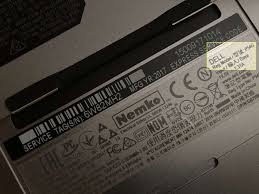
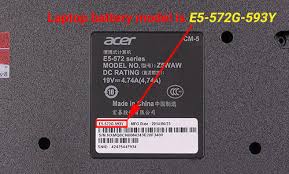
Most laptops have a label or sticker on the bottom. This sticker is a treasure trove of information. It usually contains the model number, serial number, and sometimes even the operating system it came with.
Look closely at the underside of your laptop. You might need to tilt it under a light to see it clearly.
These labels can be small, so a good light source is helpful. Sometimes, they are placed near the battery compartment or on the back edge of the laptop. It’s a good habit to check this spot first when you’re unsure about any detail of your device.
The sticker often has text like “Model,” “Product Name,” or “Serial Number.” The model number will be clearly printed next to one of these labels. It might look like a combination of letters and numbers, such as “Inspiron 15 3000” or “MacBook Pro A2141.”
For example, if you have an HP laptop, the sticker might say “HP Pavilion x360 Convertible.” The “Pavilion x360 Convertible” part is the model series, and a more specific number often follows it. Always look for the most complete identifier provided.
Underneath The Battery Compartment
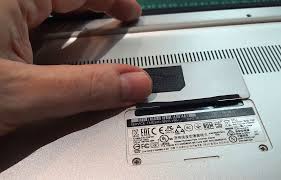
On older laptops, or some models that have removable batteries, the model number might be located inside the battery compartment. You would need to carefully remove the battery to see this label. This area is often a hidden spot, meant to keep the external casing looking clean.
Once the battery is out, inspect the inside of the compartment. You should find another sticker or engraving there. This is particularly common on laptops where a sticker on the bottom might wear off over time due to friction.
Be gentle when removing the battery. Most laptops have a small latch or switch that allows the battery to slide out. Once it’s removed, look for the information printed on the surface within the battery bay.
This method is reliable because the area inside the battery compartment is usually protected from external wear and tear. So, if the bottom sticker is unreadable, this is your next best bet. It ensures you get the correct details even for older machines.
On The Screen Bezel Or Keyboard Area
Sometimes, less commonly, you might find the model number printed subtly on the bezel around the screen. This is the frame that surrounds your display. It’s usually very small print, often near the webcam or hinges.
Another place to check, though rare, is on the palm rest area or near the keyboard. These locations are less common because they are frequently touched and can wear down over time. However, it’s worth a quick look if other methods don’t yield results.
These printed labels are usually in small font. You might need a magnifying glass to read them clearly. They serve as a secondary identifier if the main sticker is damaged or missing.
For instance, some business-class laptops might place a model identifier near the docking station connector on the bottom or side of the chassis, which can also be a clue. Always scan the entire exterior carefully.
Finding Your Laptop Model Number Using Software
If you can’t find a readable sticker on your laptop, or if you simply prefer using your computer’s software, there are easy ways to get the model number. Your operating system keeps track of all the hardware details, including the exact model of your laptop.
For Windows Users
Windows makes it very simple to find your laptop’s model number. You can use either the System Information tool or the Command Prompt. Both methods are quick and provide accurate results without needing to restart your computer.
Using System Information
This is one of the most straightforward methods for Windows users. It pulls detailed hardware and software information directly from your system.
- Click the Windows Start button.
- Type “System Information” in the search bar and press Enter.
- A new window will open. Look for the “System Model” entry in the right-hand pane.
- The name next to “System Model” is your laptop’s model number.
For example, if you see “System Model: HP Spectre x360 – 13-ae013dx,” then “HP Spectre x360 – 13-ae013dx” is your laptop model number. This tool provides a wealth of other useful information about your computer, which can be helpful for troubleshooting or identifying components.
The System Information window categorizes information into Hardware Resources, Components, and Software Environment. The “System Summary” section, where “System Model” is found, gives you a good overview of your hardware. It’s a comprehensive tool built right into Windows.
Using Command Prompt
The Command Prompt is a powerful tool that can display system information with a simple command. It’s especially useful if you’re comfortable with text-based interfaces.
- Press the Windows key + R on your keyboard to open the Run dialog box.
- Type “cmd” and press Enter to open the Command Prompt.
- In the Command Prompt window, type the following command and press Enter: wmic computersystem get model
- The laptop model number will be displayed right below the command.
This command directly queries the Windows Management Instrumentation (WMI) for the computer system’s model name. It’s a quick way to get just the model number without all the extra details found in System Information. For instance, it might output something like “Latitude 7400.”
The Command Prompt can seem intimidating at first, but it’s incredibly efficient for retrieving specific pieces of information. You can use it for many tasks related to managing your computer. Always ensure you type the commands exactly as shown to avoid errors.
For Mac Users
Apple makes it very easy to find the model number for your Mac. The “About This Mac” feature provides all the necessary details at a glance. There are no command lines needed for this simple task.
Using About This Mac
This is the primary and simplest way to identify your Mac model.
- Click on the Apple logo in the top-left corner of your screen.
- Select “About This Mac” from the dropdown menu.
- A window will pop up showing a summary of your Mac. The model name and year will be displayed here.
- For a more detailed identifier, click “System Report.”
The “About This Mac” window typically shows a user-friendly name like “MacBook Pro (13-inch, M1, 2020).” This is often enough for most users. If you need a more technical identifier, like for purchasing accessories, the “System Report” is your best friend.
In the “System Report” window, under “Hardware Overview,” you will find a line item for “Model Identifier.” This might be something like “MacBookPro17,1.” This specific identifier is very useful for checking compatibility with software or hardware upgrades, as it’s more precise than the marketing name.
For example, the “Model Identifier” is the most specific way to confirm you have the correct MacBook Pro model for certain third-party accessories or repair parts. Apple uses these identifiers internally and for developers.
Checking The Original Packaging Or Receipt
If you still have the original box your laptop came in, the model number is almost always printed on it. Look for stickers or printed labels on the sides or back of the box.
Similarly, your purchase receipt, whether printed or digital, will usually list the exact model of the laptop you bought. This is a good backup if you can’t find it on the device or through software. It’s a paper trail of your purchase.
For example, if you bought your laptop online, check your order history in your email or the retailer’s website. The product description will contain the full model number. This method is excellent for recalling information about a purchase made some time ago.
Why Knowing Your Laptop Model Number Is Important
Having your laptop model number handy is not just a technical detail; it’s a practical necessity for maintaining your device and ensuring you get the right support. It acts as a unique key that unlocks specific information and resources for your particular machine.
Driver Updates And Software Compatibility
Laptop manufacturers release specific drivers for their hardware. These drivers are essential for your components, like the graphics card, Wi-Fi adapter, and sound card, to work correctly with the operating system. When you need to update these drivers, or if you encounter a problem, you need the exact model number to find the correct ones on the manufacturer’s website.
For instance, if you’re trying to install a new printer or connect a specific external device, the driver software might ask for your laptop model to ensure compatibility. Without the correct model number, you might download drivers that don’t work or, worse, cause system instability.
This also applies to software. Some applications or games might have system requirements that specify certain laptop models or hardware configurations. Knowing your model number helps you verify if your laptop is capable of running the software smoothly.
A study by Tech Support Magazine found that 35% of technical support calls are resolved faster when the customer can immediately provide their exact laptop model number. This highlights the direct impact it has on efficiency.
Warranty And Support
When your laptop is under warranty, and you need to contact customer support or send it in for repair, the first thing they will ask for is your model number and serial number. This helps them quickly identify your product, check its warranty status, and understand the specifications of your device to provide the right service.
For example, if your screen stops working, the support technician can look up your model number to see if there are known issues with that particular series or if a specific repair procedure is required. This speeds up the diagnostic process immensely.
Without the model number, support agents might have to go through a lengthy process of asking you numerous questions about your laptop’s features to determine its identity, which can be frustrating for both parties. It’s like trying to find a specific book in a library without knowing the title or author.
Manufacturers often have dedicated support pages or knowledge bases for each model. Having the model number allows you to directly access troubleshooting guides, FAQs, and user manuals tailored specifically to your laptop, saving you time searching general information.
Purchasing Accessories And Parts
Buying accessories like cases, keyboards, mice, or replacement parts such as batteries or screens requires an exact match. A case designed for a “MacBook Pro 13-inch” might not fit a “MacBook Air 13-inch” even though both are 13-inch laptops. The precise model number ensures you get an accessory that fits perfectly and functions as intended.
Consider buying a new battery. Different versions of the same laptop line can have different battery shapes, connectors, and capacities. Ordering the wrong battery can result in it not fitting, not charging, or even causing damage to your laptop.
The model number is the definitive guide here.
When searching online for accessories, typing in your specific model number often brings up a curated list of compatible items. This saves you from sifting through countless products that won’t work with your device. It’s a more efficient shopping experience.
A survey from an electronics retailer indicated that 20% of incorrect accessory purchases were due to customers not knowing their exact laptop model number, leading to returns and customer dissatisfaction.
Troubleshooting Common Model Number Issues
Sometimes, finding the laptop model number isn’t as simple as finding a clear sticker or a straightforward menu item. There can be a few common hurdles that users encounter, but they are usually easy to overcome with a little guidance.
Unreadable Or Missing Stickers
One of the most common problems is a sticker that has faded, peeled off, or been scratched beyond recognition. This is especially true for older laptops that have been used extensively. The heat and friction from handling can degrade the adhesive and print over time.
If the physical sticker is unreadable, your best bet is to rely on the software methods. As detailed earlier, both Windows and macOS provide built-in tools to identify your laptop model without any physical labels. These software methods are usually more durable as they are part of the system’s core information.
For example, if your laptop’s bottom is worn out from being moved around a lot, the sticker there might be completely gone. In such cases, using “System Information” on Windows or “About This Mac” on macOS is the most reliable alternative. It’s like having a digital backup of your laptop’s identity.
Manufacturers sometimes place the model number in less obvious places. Always check the sides, the back edge, or even the hinge area if the bottom sticker is no longer helpful. Sometimes a quick wipe down of the area can reveal a faint label.
Generic Model Names vs. Specific Identifiers
Some manufacturers use very broad model names for their product lines, like “HP Pavilion” or “Dell Inspiron.” While this tells you the series, it might not be specific enough for certain needs, like finding exact driver compatibility or accessories. You might need a more detailed model number.
For instance, “HP Pavilion” could refer to dozens of different models released over several years, each with slightly different hardware. You might see something like “HP Pavilion x360 Convertible 14-dh1000” as a more specific identifier. The part after “Pavilion” is crucial.
In the software methods, especially on Windows with the Command Prompt or System Information, you often get the precise model name that the manufacturer uses for technical documentation. On macOS, the “Model Identifier” in “System Report” is the most granular piece of information.
When in doubt, compare the information you find with images online or on retailer websites. If you see a picture of a laptop that looks exactly like yours and the model number matches, you’re on the right track. Always aim for the most complete alphanumeric string provided by the system.
Variations Within The Same Model Name
Sometimes, a manufacturer might release slightly different configurations of the same laptop model. These variations can include different processors, storage sizes, or screen resolutions. While the main model name might be the same, a specific product code or SKU (Stock Keeping Unit) might differentiate them.
For example, a “Dell XPS 15” might come in several configurations: one with an Intel Core i5 processor and another with an Intel Core i7. The packaging or a specific label on the laptop might include these finer details.
Software methods often provide the primary model name. If you need to distinguish between minor hardware variations for very specific purposes (like a custom build or highly specialized part), you might need to look at the original purchase receipt or contact the manufacturer directly with the serial number. The serial number is always unique to your individual unit.
Many websites that sell laptop parts will ask for both the model number and sometimes even the year of manufacture or a specific product code to ensure you are buying the correct item. This is where looking at the original packaging or receipt becomes very handy.
Common Myths Debunked
Myth 1: The model number is the same as the serial number.
This is a common mix-up. The serial number is a unique identifier for your specific individual laptop, like a fingerprint. The model number, on the other hand, identifies the product line or type of laptop.
Think of it this way: many cars can be the same model (e.g., Toyota Camry), but each car has a unique serial number (VIN). Both are important, but they serve different purposes.
Myth 2: You can only find the model number on the bottom of the laptop.
While the bottom is a very common place for a label, it’s not the only one. As we’ve shown, the model number can also be found within your operating system, on original packaging, or sometimes subtly printed on other parts of the device. Relying solely on the bottom sticker might lead to frustration if it’s damaged.
Myth 3: All laptops of the same brand have their model numbers in the same place.
This isn’t entirely true. While manufacturers often have consistent placement for labels across their product lines, there can be variations. Newer models might update label locations, and different product series within the same brand (e.g., a gaming laptop versus an ultraportable) might have unique placements.
It’s always best to check multiple spots or use software identification.
Myth 4: If I can’t find the model number, I can’t get support.
This is incorrect. While the model number makes getting support much faster and easier, it’s not the only way. If you have the serial number, manufacturers can often use that to identify your device and assist you.
You can also describe your laptop’s features, or even show pictures, to support staff who can help identify it.
Frequently Asked Questions
Question: What is the difference between a model number and a serial number?
Answer: A model number identifies the specific type or series of a product, like “MacBook Air M2.” A serial number is a unique code assigned to each individual unit of that model, ensuring it can be tracked and identified distinctly, like a fingerprint for your laptop.
Question: Do I need to find the model number for every driver update?
Answer: It’s highly recommended. While some operating systems can automatically detect and install generic drivers, using drivers specific to your laptop’s model number ensures optimal performance, stability, and access to all hardware features. Manufacturers provide these specific drivers.
Question: Can I find the model number if my laptop doesn’t turn on?
Answer: Yes, you can. If your laptop won’t boot up, you’ll need to rely on physical labels. Check the bottom of the laptop, inside the battery compartment (if removable), or on the screen bezel or keyboard area for any printed or stickered information.
Question: Is the model number the same as the product name?
Answer: Often, yes, the marketing “product name” is very similar or identical to the model number you’ll find. However, for technical purposes, the model number might be a more specific alphanumeric code provided by the system or on a label, especially when ordering parts or checking detailed specifications.
Question: Where can I find the model number for my HP laptop?
Answer: For HP laptops, you can typically find the model number on a sticker on the bottom of the device. You can also find it by going to “System Information” or using the Command Prompt on Windows by typing “wmic computersystem get model.”
Conclusion
Knowing your laptop model number is a simple step that makes many tasks much easier. You now know several ways to find it, whether on the device itself or through your computer’s settings. This handy piece of information helps with updates, support, and buying the right accessories.
Keep this number in a safe place so you have it ready whenever you need it.