It’s a common question for anyone using a laptop, especially if you need to find specific software or support. Figuring out what model is my laptop can feel tricky sometimes. You might need this info for drivers, repairs, or even selling it.
Don’t worry, it’s simpler than it sounds! We’ll walk you through easy ways to find out exactly what model your laptop is, step by step.
Key Takeaways
- You can find your laptop model easily using built-in computer tools.
- Physical labels on your laptop often show the model number.
- System information reports provide detailed hardware and model data.
- Checking the original packaging or documentation helps identify your laptop.
- Online support pages for manufacturers can help you locate your model.
Finding Your Laptop Model Information
Knowing your laptop’s exact model name is super helpful. It makes finding the right drivers for your graphics card or Wi-Fi simple. It also helps if you ever need to talk to customer support about a problem.
This section will show you the quickest ways to get this information right from your computer. We’ll explore the built-in tools that most computers have.
Using System Information in Windows
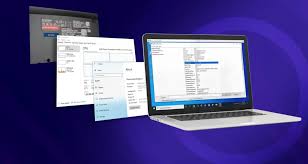
Windows has a handy tool called System Information. It shows you all the details about your computer, including the model.
To open it, just type “System Information” into the Windows search bar and click on the app.
You will see a lot of technical stuff. Look for the line that says “System Model.” Right next to it, you’ll see your laptop’s model name.
This tool is great because it doesn’t need an internet connection. It pulls all the data directly from your computer’s hardware.
For example, if you have a Dell laptop, it might show “Inspiron 15 3000” or something similar. For an HP, it could be “Pavilion x360.”
-
This method is reliable and works on most Windows versions. It is a core part of the operating system.
It does not require any special downloads or third-party software. The information is directly accessible.
Checking System Properties
Another simple way on Windows is to look at System Properties. This gives you a quick overview.
Right-click on “This PC” (or “My Computer”) on your desktop or in File Explorer. Then, select “Properties.”
A window will pop up showing basic system information. Somewhere in this window, you should see your computer model listed under the processor or operating system details.
Sometimes, this might just say “System manufacturer” and “System model.” The “System model” line will tell you what you need.
This is often the fastest method if you just need the model name and not all the other system details.
-
This feature is easy to access from your desktop. It is designed for quick checks.
It provides essential details without overwhelming the user.
Using Command Prompt
For those who like using text commands, Command Prompt can also help. It’s a bit more technical but very accurate.
Press the Windows key and type “cmd” to open Command Prompt.
In the black window that appears, type the following command and press Enter:
wmic computersystem get model
This command asks Windows Management Instrumentation Command-line to fetch the computer system’s model. It will then display the model name directly.
This method is especially useful for users who are comfortable with command-line interfaces. It’s a powerful way to get specific system details.
It’s a great trick to know for troubleshooting or scripting.
-
Command Prompt offers precise data retrieval. It bypasses graphical interface elements.
This method is efficient for experienced users.
Looking for Physical Labels
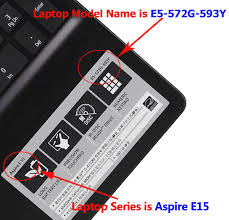
Your laptop often has labels directly on it that tell you its model. These are usually on the bottom or under the battery.
Take a moment to turn your laptop over. You’ll often find a sticker with serial numbers, model numbers, and other important info.
Look for terms like “Model,” “Product Name,” or “S/N” (Serial Number). The model name is usually quite clear.
Sometimes, this sticker might have worn off or be hard to read. If so, don’t worry, the software methods will still work.
For example, a sticker might say “HP Spectre x360 – 13-ae013dx” or “Lenovo ThinkPad T480.”
Make sure to write this down somewhere safe or take a clear photo. This physical information is permanent.
-
Physical labels provide direct hardware identification. They are independent of the operating system.
This is a good backup method if software access is limited.
Under the Battery Compartment
Many older laptops, and some newer ones, have a removable battery. If yours does, the label with the model information might be inside the battery compartment.
Carefully remove the battery. Look on the inside surface of the laptop or on the battery itself for a sticker.
This is a common place manufacturers put detailed model and serial number information. It’s protected from wear and tear when the battery is in place.
This method ensures that the label is preserved for a long time. It is useful if the external stickers are damaged.
-
Checking the battery compartment protects the label. This ensures the information remains readable.
It is a thorough method for finding model details.
On the Screen Bezel or Keyboard Deck
Some manufacturers place model names on the physical body of the laptop. This might be around the screen frame (bezel) or on the surface above the keyboard.
Look closely at the edges of your screen. Sometimes, a small logo or model name is printed there. Also, check the area above your keyboard.
This placement makes the model name easily visible without having to flip the laptop over. It’s a design choice for quick reference.
For instance, a MacBook might have its model name subtly printed on the underside. Other brands might put it on the keyboard deck.
-
Visible placement offers convenience. It allows for quick identification without much effort.
This is a convenient spot for model branding.
Using Manufacturer Support Websites
If you still can’t find the model, the manufacturer’s website is a great resource. They have tools to help you identify your device.
Visit the support section of your laptop brand’s website (e.g., Dell, HP, Lenovo, Apple).
Many sites have an option to detect your device automatically. You might need to download a small utility.
Alternatively, you can often enter your laptop’s serial number (which you might find on a sticker) to get its exact model and specifications.
This is a very accurate method as the manufacturer has the definitive record of your device. It is a secure way to get information.
-
Manufacturer websites offer official support tools. They can confirm your model with high accuracy.
This method leverages the brand’s own database.
HP Support Assistant Example
For HP users, the HP Support Assistant software is a fantastic tool. It comes pre-installed on many HP laptops.
Open the HP Support Assistant. It will scan your system and display detailed information about your laptop, including the exact model name.
It also helps with updates and troubleshooting. It is a comprehensive package for HP owners.
This is a prime example of how manufacturers integrate support directly into their hardware. It simplifies the process for users.
-
Brand-specific tools simplify identification. They offer integrated support features.
This software is designed for user convenience.
Dell SupportAssist Example
Dell also provides a similar tool called SupportAssist. If you have a Dell laptop, look for this application.
Running SupportAssist will give you a clear readout of your laptop’s model, service tag, and other specs. It’s a straightforward way to get all the vital details.
This tool aims to make support easy and efficient. It automates much of the system checking.
This proactive approach helps users maintain their devices. It provides essential diagnostics.
-
Dell SupportAssist offers detailed diagnostics. It provides a clear overview of your system.
This tool is a user-friendly support solution.
Checking Original Packaging and Documentation
If you still have the box your laptop came in, that’s a goldmine of information. The model name is almost always printed clearly on the outside.
Look for stickers or print on the box. It will state the exact model and often some key specifications.
This is a very reliable method if you are a collector of original packaging. It’s a tangible record of your purchase.
You might also have a user manual or warranty card. These documents will definitely list your laptop’s model.
For example, the box might say “Apple MacBook Air M1, 13-inch” or “ASUS ROG Zephyrus G14.”
Having the original box can be helpful for resale value too. It shows the product is complete.
-
Original packaging provides definitive model information. It serves as a historical record.
This method is foolproof if you kept the box.
User Manuals and Warranty Information
Any paperwork that came with your laptop is also a good place to look. This includes the quick start guide, user manual, or warranty registration card.
These documents are designed to give you all the essential details about your specific product. The model name is a key piece of this information.
You might find the model name printed on the cover or within the first few pages. It is usually in a prominent spot.
This is a very secure way to get accurate information. The manufacturer prints it directly for you.
-
Manuals and warranty cards contain official specs. They are reliable sources of data.
These documents are tailored to your specific device.
Common Myths Debunked
Myth 1: All laptops from the same brand have the same model name
This is not true. Manufacturers create many different lines and sub-models of laptops, even within the same brand. For instance, Dell has Inspiron, XPS, and Latitude lines, each with unique model names.
The specific features, design, and target audience differentiate them. Simply knowing it’s a Dell doesn’t tell you which specific version you have.
Myth 2: The serial number is the same as the model name
This is incorrect. The serial number (S/N) is a unique identifier for your specific laptop unit, like a fingerprint. The model name (e.g., “HP Spectre x360”) refers to the product line and specific configuration.
You need the model name to find general support or drivers, while the serial number is for warranty claims or contacting support about your exact device.
Myth 3: You need to buy special software to find your laptop model
This is a myth. As shown in this guide, all major operating systems, like Windows and macOS, have built-in tools that provide your laptop’s model information for free. You don’t need to purchase any extra software.
The information is readily available through system settings and command-line tools.
Myth 4: If your laptop is old, you can’t find the model name
Even older laptops retain their model information. The physical labels on the laptop itself, or within the system information tools, remain the same regardless of age. While support for very old models might be limited, the model name itself is always discoverable on the device or through its operating system.
Frequently Asked Questions
Question: How can I find out what model my laptop is if I can’t turn it on?
Answer: If your laptop won’t turn on, the best way to find the model is to look for physical labels. Check the bottom of the laptop, the area around the screen bezel, or inside the battery compartment if it’s removable. The original packaging or any documentation you kept will also have this information.
Question: Will the model name tell me my laptop’s exact specifications?
Answer: The model name gives you a good idea of your laptop’s general specifications and capabilities, as it identifies a specific product line and configuration. However, for precise details like RAM size, storage capacity, or processor speed, you might need to look at the full system information report on your computer or check the manufacturer’s product page for that specific model.
Question: Is there a difference between the model name and the product number?
Answer: Yes, there can be. The model name is usually a more general identifier (e.g., “Lenovo Yoga 7i”). The product number or part number is often more specific and can differentiate between various configurations or regional versions of the same model name.
Both are usually found on the labels.
Question: What if my laptop model name has a lot of letters and numbers?
Answer: That’s common, especially for more complex or gaming laptops. The full string of characters is often important for finding the exact drivers or support information. Try to copy the entire name exactly as it appears, or take a clear photo of the label.
Manufacturers use these detailed names to ensure you get the right parts or software.
Question: How often should I check my laptop’s model information?
Answer: You typically only need to find your laptop’s model name once, usually when you first get it or when you need to look for something specific like drivers or support. It doesn’t change unless you replace a major component like the motherboard, which is rare. Knowing it is like knowing your car’s make and model; you just need to know it.
Summary
Finding your laptop’s model name is straightforward. You can use built-in Windows tools like System Information or System Properties. Physical labels on the laptop or in the battery compartment are also reliable.
Manufacturer support websites and original packaging offer further confirmation. Now you know exactly how to identify what model is my laptop for any need.