Figuring out how to know my laptop model can feel tricky for folks new to computers. You might need this info for software updates, finding drivers, or when you need help. It’s a common question, but don’t worry!
We’ll show you super simple ways to find this out. Get ready to learn a quick trick that makes it easy.
Key Takeaways
- You can find your laptop model using your computer’s settings.
- System Information offers a quick way to see your model name.
- Checking the physical label on your laptop provides the model number.
- Command Prompt can also reveal your laptop’s exact model.
- Knowing your laptop model helps with support and compatibility.
Finding Your Laptop Model In Settings
Your computer’s built-in settings are often the easiest place to find your laptop model. This method works for most Windows computers. It’s like looking up your laptop’s name tag right in its digital closet.
You’ll see details about your system, including the specific model number that makes your laptop unique.
Using System Information
One of the best tools for this is called System Information. It’s a detailed report about everything inside your computer. You can open it by searching for “System Information” in the Windows search bar.
Once it loads, look for the “System Model” line. This will clearly state your laptop’s make and model.
This tool is very handy because it shows a lot of other useful information too. You can see details about your processor, memory, and even your graphics card. For anyone curious about their hardware, System Information is a goldmine.
Accessing Windows Settings
Another straightforward way is through the main Windows Settings. Click the Start button, then the gear icon for Settings. Go to the ‘System’ category, and then click on ‘About’ from the left-hand menu.
Here, you’ll see a section for ‘Device specifications’ which includes your ‘System model’.
This view is designed to give you a quick overview of your PC. It’s perfect for when you just need the model name without digging too deep. Many users find this the most intuitive method because it’s part of the everyday settings menu.
Checking The Physical Label
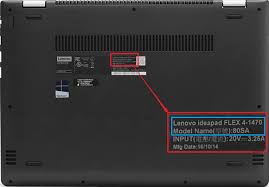
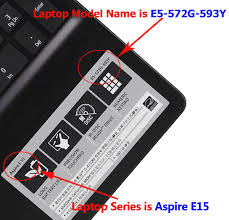
Your laptop usually has a sticker or label with important information printed on it. This is a direct source, like reading the tag on a piece of clothing. You don’t need to turn your computer on to find this.
Look for it on the bottom of the laptop, sometimes under the battery if it’s removable.
Location Of Labels
Most manufacturers place these labels on the underside of the laptop. You might have to tilt your device to see it clearly. Sometimes, important details are also found inside the battery compartment.
It might say things like “Model:”, “Product Name:”, or similar wording, followed by your laptop’s name and number.
These labels are designed to be permanent, so they are usually quite durable. Even on older laptops, you can often still make out the text. This is a reliable method that bypasses any software issues you might encounter.
What To Look For
On the label, you’ll typically see the brand name (like Dell, HP, Lenovo, Apple) and then a specific model number or name. This could be something like “Inspiron 15 5000” or “MacBook Pro (13-inch, M1, 2020)”. Pay close attention to the exact characters as they are important for compatibility.
Don’t confuse the model number with serial numbers or other regulatory marks. The model name or number is what you’ll use to search for support or accessories online. It’s the key identifier for your specific laptop version.
Using Command Prompt
For those who like using the command line, the Command Prompt offers a quick way to find your laptop model. This is a text-based interface that lets you issue commands to your computer. It’s a bit more technical, but very effective.
Opening Command Prompt
To open Command Prompt, click the Start button and type “cmd” in the search bar. Then, click on “Command Prompt” to open it. You can also right-click it and select “Run as administrator” if you prefer, though it’s not usually necessary for this task.
Once the black window appears, you’re ready to type in the command. This tool is powerful because it can fetch detailed system information instantly. It’s a favorite among IT professionals for its speed and accuracy.
Executing The Command
In the Command Prompt window, type the following command and press Enter:
wmic computersystem get model
This command tells Windows Management Instrumentation Command-line (WMIC) to get the model information from your computer’s system. Almost instantly, your laptop’s model name will appear below the command you typed.
This method is great because it bypasses graphical interfaces that might be slow or unresponsive. It’s a direct line to your system’s core information. You’ll see the model listed clearly, making it easy to copy or note down.
Why Knowing Your Laptop Model Matters
Knowing how to know my laptop model is more than just a name. It’s essential for keeping your computer running smoothly and safely. This piece of information helps you get the right support and software.
Driver Updates
When you need to update drivers for your graphics card, Wi-Fi adapter, or other components, you need your specific model. Drivers are software that help your hardware communicate with your operating system. Using the correct drivers ensures your hardware works as intended and can improve performance or fix issues.
For example, if your laptop’s sound stops working, you might need to download a new audio driver. Without the correct model, you could download a driver meant for a different laptop, which might not work or could even cause problems. Identifying your model ensures you get the perfect driver match.
Software Compatibility
Some software, especially specialized applications or games, might list system requirements. Knowing your laptop model helps you determine if it meets those requirements. It’s also important for operating system updates or when you want to install new operating systems.
Imagine you want to install a new version of Windows. The installer might ask for your hardware details to ensure a smooth upgrade. Your laptop model is a key part of this compatibility check.
This prevents errors and ensures a successful installation of new software.
Customer Support
When you contact the manufacturer’s customer support for help, they will almost always ask for your laptop’s model number. This allows them to quickly access specific information about your device, such as its specifications, known issues, and available support resources. It speeds up the troubleshooting process significantly.
Think about needing help with a broken screen or a malfunctioning keyboard. The support agent needs to know if you have a lightweight ultrabook or a powerful gaming machine to offer the right advice or service options. Your model number is their starting point.
Warranty Information
Your laptop’s warranty is often tied to its model and purchase date. Knowing the model helps you check your warranty status online or when speaking with support. This is crucial if you need to make a warranty claim for repairs or replacements.
If your laptop battery starts to fail within the warranty period, knowing the exact model ensures the manufacturer can verify your coverage. They can then arrange for a replacement or repair according to the warranty terms for your specific device.
Common Myths Debunked
Myth 1: The laptop model is the same as the brand name.
This is not true. The brand name, like HP or Dell, tells you who made the laptop. The model name or number, such as “HP Spectre x360” or “Dell XPS 13”, specifies the exact product line and configuration.
Many different models exist under one brand.
Myth 2: You always need to turn on your laptop to find the model.
You do not always need to turn on your laptop. As shown earlier, you can find the model name on a physical sticker located on the bottom of the device, or sometimes under the battery. This is a convenient way to check even if your computer won’t boot up.
Myth 3: The model name is hidden in very technical system files.
While the model information is stored in system files, it is not hidden in a way that requires advanced technical skills to find. The methods described, such as using Windows Settings or Command Prompt, are designed to be accessible to average users. These tools present the information clearly.
Myth 4: All laptops of the same brand have the same model name.
This is incorrect. Brands like Apple, Lenovo, and Samsung produce a wide variety of laptops with different specifications and features. Each specific product line and configuration usually has its own unique model name and number to differentiate it from others.
For example, Apple has MacBook Air, MacBook Pro, and different sizes within those lines.
Frequently Asked Questions
Question: Is my laptop model the same as its serial number
Answer: No, your laptop model is the name of the product line (e.g., Dell Inspiron 15). Your serial number is a unique identifier for your specific unit, like a fingerprint. You need both for different purposes, but they are not the same.
Question: What if I can’t find a sticker on my laptop
Answer: If there’s no physical sticker, you can always use the software methods like checking Windows Settings or using Command Prompt. These are reliable ways to find your model name even if the external label is missing or damaged.
Question: Can I find my laptop model if it’s a very old computer
Answer: Yes, older computers usually still have the model information available through their system settings or on a physical sticker. The methods described in this post work for most laptops, regardless of their age, as long as the operating system is functioning.
Question: Do I need administrator privileges to find my laptop model
Answer: Generally, no. Basic methods like checking Windows Settings or System Information do not require administrator rights. Even using Command Prompt with the ‘wmic’ command to get the model usually works without elevated privileges.
Question: What if my laptop model name looks different in different places
Answer: Ensure you are looking at the “System Model” or “Product Name” field. Sometimes marketing names or internal codenames might appear elsewhere, but the official system model is what you need for support and drivers. Double-check the exact wording.
Summary
Now you know exactly how to find your laptop model. Whether you look in settings, check a sticker, or use a quick command, it’s simple. Knowing your model helps with updates, support, and keeping things working right.
You’ve got the easy steps to find it anytime.