Finding your Lenovo laptop’s model number might seem tricky at first, especially if you’re new to computers. You might need it for updates, troubleshooting, or buying accessories. Don’t worry, it’s easier than you think!
This guide will show you exactly how to find lenovo laptop model number with simple steps. We’ll cover different ways so you can find it no matter what.
Key Takeaways
- You can find your Lenovo laptop model number on a sticker on the laptop itself.
- The model number is also available within Windows settings.
- You can check your original purchase information or the Lenovo support website.
- Different methods work depending on whether your laptop can power on.
- Knowing your model number helps with support and finding compatible parts.
Locating Your Lenovo Laptop Model Number
Knowing your Lenovo laptop’s specific model number is super helpful. It’s like a unique ID for your device. This number helps you find drivers, get customer support, and even buy the right accessories like batteries or chargers.
Sometimes, it’s right there on the box your laptop came in, but if you don’t have that anymore, we have other easy ways for you.
Checking Physical Labels
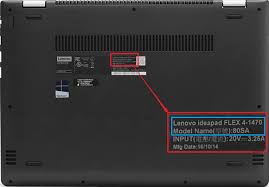
One of the most straightforward ways to find your Lenovo laptop model number is by looking for a sticker on the device itself. These stickers are usually placed on the bottom of the laptop, but sometimes you can find them under the battery compartment if your model has a removable battery. They often contain a mix of numbers and letters, and you’ll be looking for something labeled “Model,” “Model No.,” or “Product Name.”
These labels are important because they are printed directly by the manufacturer. They provide the exact identification of your hardware. For instance, you might see something like “IdeaPad 3 15ITL6” or “ThinkPad T490.” The model name is usually the most prominent, and the specific model number follows closely.
- Look on the bottom casing of your laptop.
- Check inside the battery compartment if the battery is removable.
- The label will typically say “Model” or “Product Name.”
Many users find this the quickest method. It requires no software interaction and can be done even if your laptop isn’t booting up properly. The sticker’s durability can vary, but most are designed to last the lifespan of the device.
Ensure you clean the area around the sticker if it’s dusty to read the text clearly.
What Information Is On The Sticker
Beyond the model number, these stickers often contain other useful information. You might see a serial number (S/N), which is a unique identifier for your specific unit. There’s also usually a barcode that represents either the model or serial number.
Sometimes, you’ll find regulatory information or power specifications like voltage and amperage.
The model name is what most people recognize, like “Yoga” or “Legion.” The actual model number often has more specific details, like screen size or internal components, which helps Lenovo support pinpoint your exact configuration. For example, a “ThinkPad X1 Carbon Gen 9” is a more general description, while a model number like “20XW” might refer to a specific variant of that machine.
Using Your Laptop’s System Information
If your Lenovo laptop is working and you can access Windows, there are several easy ways to find the model number through the system settings. These methods are reliable and don’t require you to physically inspect the laptop. They pull information directly from your system’s hardware and software.
Windows System Information
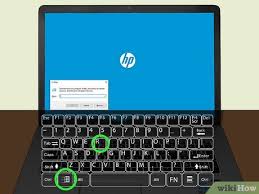
Windows has a built-in tool that shows you all sorts of details about your computer. To access it, press the Windows key and the letter R on your keyboard at the same time. This opens the Run dialog box.
Type “msinfo32” into the box and press Enter or click OK.
A window will pop up showing “System Information.” On the right side of this window, you’ll see a list of items. Look for “System Model.” The text next to it is your Lenovo laptop’s model number. This is a very accurate way to get the information as it’s read directly from the system’s BIOS.
This method is great for identifying the exact model even if the physical sticker is worn out or missing. It’s also useful if you’ve recently
Example:
When you open System Information, you might see:
- OS Name: Microsoft Windows 11 Home
- System Manufacturer: LENOVO
- System Model: 81UT000CUS
In this case, “81UT000CUS” is the model number you are looking for.
Command Prompt
Another way through Windows is using the Command Prompt. This might sound technical, but it’s a very quick method. Press the Windows key and type “cmd” in the search bar.
Right-click on “Command Prompt” and select “Run as administrator.”
Once the Command Prompt window is open, type the following command and press Enter:
wmic csproduct get name
The output right below that command will be your Lenovo laptop’s model number. This command queries the Windows Management Instrumentation (WMI) provider, which can access hardware details.
This is a powerful way to get system information quickly. It’s often used by IT professionals for system inventory. If you’re comfortable with a few basic commands, this is an excellent alternative to navigating through graphical menus.
Checking Device Manager
While Device Manager primarily shows you the status of your hardware components (like drivers for your graphics card or Wi-Fi adapter), it doesn’t directly display the main system model number. However, some integrated hardware within Device Manager might hint at the model family. For instance, if you look at the display adapters, you might see a graphics card model that’s common in a specific Lenovo series.
This method is less direct for finding the overall model number but can be useful for identifying specific hardware if that’s your goal. The main model number is more consistently found through System Information or Command Prompt.
Finding The Model Number On The Lenovo Support Website
If you’re struggling to find the model number on your laptop or within Windows, the Lenovo support website is another excellent resource. You can often use it to automatically detect your device or manually enter a serial number to find its details.
Automatic Detection
Go to the Lenovo Support website. You’ll usually see an option to “Detect My Device” or “Scan Product.” Clicking this will prompt your browser to run a small detection tool. This tool scans your system for identifying information, including your model number, and presents it to you.
This is the easiest method if your laptop is functioning and connected to the internet. It bypasses the need for manual searching and is designed to be user-friendly. The detection tool is usually quick and provides a direct link to support pages for your specific model.
Manual Identification Using Serial Number
If automatic detection doesn’t work, you can often find your serial number on the physical sticker on your laptop. Once you have the serial number, go to the Lenovo Support website and look for an option to enter it. After entering your serial number, the website will display detailed information about your laptop, including its exact model number.
This is a reliable method, especially if your system model number on the sticker is damaged or unreadable. The serial number is a unique identifier that Lenovo uses to track every unit produced. It’s a guaranteed way to access accurate information about your device.
Scenario: You need to replace your laptop’s keyboard, but the sticker on the bottom is scratched. You find a serial number (e.g., PF1XYZZZ) on another part of the sticker. You go to Lenovo support, enter “PF1XYZZZ,” and it tells you your laptop model is a “ThinkPad X1 Carbon Gen 9.” Now you know exactly which keyboard to buy.
Checking Original Packaging Or Receipts
When you first purchase a Lenovo laptop, the original box it came in usually has a label with the product name and model number. This label is often quite detailed. If you still have the box, it’s a straightforward way to find the information.
Similarly, your purchase receipt, whether physical or digital, should also list the product name and model number. Many online retailers include this information in their order confirmations or invoices. Checking these documents can quickly give you the model number without interacting with the laptop itself.
These sources act as excellent backups. It’s always a good idea to keep important documents and packaging for electronic devices for at least the warranty period. The packaging often has the most comprehensive set of identifying information.
Finding The Model Number For Older Or Non-Booting Laptops
Sometimes, laptops might not boot up due to hardware issues, or perhaps you have an older model you’re trying to identify. In such cases, relying on the physical sticker or the original purchase details becomes crucial. If even those are gone, you might need to look more closely at specific hardware components or contact Lenovo support with any identifiable serial numbers.
Physical Inspection Beyond The Bottom Sticker
While the bottom is the most common place, some very old or specific Lenovo models might have stickers in less obvious locations. For example, some might have a sticker inside the battery compartment (if it’s removable), or even a small label near the screen hinge or along the keyboard deck. It’s worth a thorough visual inspection of the entire exterior.
Lenovo Vantage Software
If your laptop boots but you want a simple, user-friendly interface to find this information, Lenovo Vantage is a great application. It’s a pre-installed Lenovo utility that provides access to system updates, diagnostics, and of course, system information. Open Lenovo Vantage, and you should find a section that displays your device name, model, and serial number prominently on the dashboard or in a “My Device” section.
Lenovo Vantage is designed to make managing your Lenovo device easy. It centralizes all the important information about your laptop, making it simple to keep track of specifications, warranty status, and available updates. It’s a convenient tool that many users find indispensable.
Example Scenario: You want to know if your laptop needs a BIOS update. You open Lenovo Vantage, and it immediately shows you the model number and checks for available updates. This saves you the trouble of manually searching for drivers.
What If You Can’t Find It Anywhere
If you’ve tried all the above methods and still can’t find your Lenovo laptop model number, the next best step is to contact Lenovo customer support directly. Provide them with as much information as you can recall about the laptop, such as the approximate purchase date, color, screen size, or any unique features. If you can find a serial number anywhere, that will be the most helpful piece of information for them.
Lenovo’s support team has access to extensive databases and can often identify your device based on partial information or a serial number. They are equipped to help you find the exact model number and provide assistance with whatever you need it for.
Common Myths Debunked
Myth 1: The Model Number Is Always A Series Of Numbers
Reality: While many Lenovo model numbers do contain numbers, they often include letters as well. For example, you might see models like “IdeaPad 3 15ITL6” or “ThinkPad T490.” The combination of letters and numbers provides a more precise identifier.
Myth 2: You Must Turn On The Laptop To Find The Model Number
Reality: This is not true. You can find the model number on physical stickers on the laptop’s casing, on its original packaging, or on purchase receipts. These methods are available even if the laptop won’t power on.
Myth 3: All Stickers On A Lenovo Laptop Show The Model Number
Reality: Lenovo laptops have various stickers, including regulatory compliance marks, energy efficiency ratings, and sometimes even promotional stickers. While the model number is usually on a prominent sticker, it’s specifically labeled as “Model,” “Model No.,” or “Product Name.” It’s important to look for these specific labels.
Myth 4: The Model Number Is The Same As The Serial Number
Reality: The model number identifies the specific product line and configuration (e.g., IdeaPad 3). The serial number is a unique identifier for your individual unit. Both are important for support, but they are distinct pieces of information.
Frequently Asked Questions
Question: Where is the model number usually found on a Lenovo laptop
Answer: The model number is most commonly found on a sticker on the bottom of the laptop. It can also be found within Windows system information.
Question: Can I find the model number if my laptop is broken
Answer: Yes, if the physical sticker on the laptop is still readable, you can find the model number there. Original packaging or receipts are also good sources.
Question: What is the difference between a model number and a serial number
Answer: The model number identifies the type of laptop (e.g., ThinkPad T14), while the serial number is a unique code for your specific laptop unit.
Question: Does the Lenovo support website require a serial number to find the model
Answer: You can often use your serial number on the Lenovo support website, but the site also has a “Detect My Device” feature that can find the model number automatically.
Question: Is Lenovo Vantage the only software that shows the model number
Answer: No, Windows’ built-in “System Information” tool and Command Prompt can also show the model number. Lenovo Vantage is a convenient, pre-installed option.
Wrap Up
Finding your Lenovo laptop model number is simple once you know where to look. You can check the sticker on your device, explore Windows settings like System Information, or use online tools like the Lenovo Support website. Even if your laptop isn’t working, physical labels or past records usually have the answer.
With these methods, you can easily identify your model for any support or accessory needs.